

To conference in a third caller from a VOXO desk phone, press Conference while on a call. The caller is placed on hold. Dial the number or extension you want to add, then press Conference again to connect all three parties. To conference more than three callers, use VOXO Meet instead.
Starting a Meeting
- Starting a Meeting:
- To start a meeting, click Start meeting.

Providing Meeting Details
- Sharing a Meeting:
- To share meeting details, click Copy meeting info and send these details to another party.
- To join the meeting yourself, click Join Meeting.

Joining the Meeting
- Preparing to Join a Meeting:
- Enter your name and select Continue.
- You will see a dialog box asking, “Are you ready to join?” Here, you can:
- Turn your camera on/off (Ctrl + E).
- Mute/unmute your microphone (Ctrl + D).
- Change background effects.
- Reduce mic noise.
- Adjust additional settings like changing your name before joining the meeting.
- These options are also available once you are in the meeting.

Selecting Devices
- Selecting Audio and Video Devices:
- Camera: Click the dropdown to select your camera.
- Microphone: Click the dropdown arrow to select your microphone and click Test your mic.
- Speakers: Click the dropdown to select your speakers and click Play test sound.
- Click Join to enter the meeting.

Meeting Controls
- Managing Audio and Video During a Meeting:
- Turn your camera on/off: Click the camera button or press (Ctrl + E).
- Mute/unmute your microphone: Click the microphone button or press (Ctrl + D).

Additional Features
- Viewing Active Participants:
- Click People to see all active participants.

- Sending a Chat Message:
- Click Chat to send a chat message.

- Using Reactions:
- Click React to pick an emoji, like a thumbs up.

- Raising Your Hand:
- Click Raise to raise your hand, and click again to lower it.

- Sharing Your Screen:
- Click Share to share your screen. Options include Chrome Tab, Window, or Entire Screen. You can also share tab audio.

Recording and Network
- Recording the Meeting:
- To record the meeting, click Start recording. Click Stop recording when done.

- Viewing Network Status:
- Click Network to view your network status, including packet loss and download/upload rate.

View Options
- Switching to Grid View:
- Click Grid View to switch to the grid view.

- Switching to Speaker View:
- Click Speaker View to switch to the speaker view.

- Using Picture-in-Picture View:
- Start Picture in Picture: Click this to begin a picture-in-picture view.
- Stop Picture in Picture: Click this to end the picture-in-picture view.

Ending the Meeting
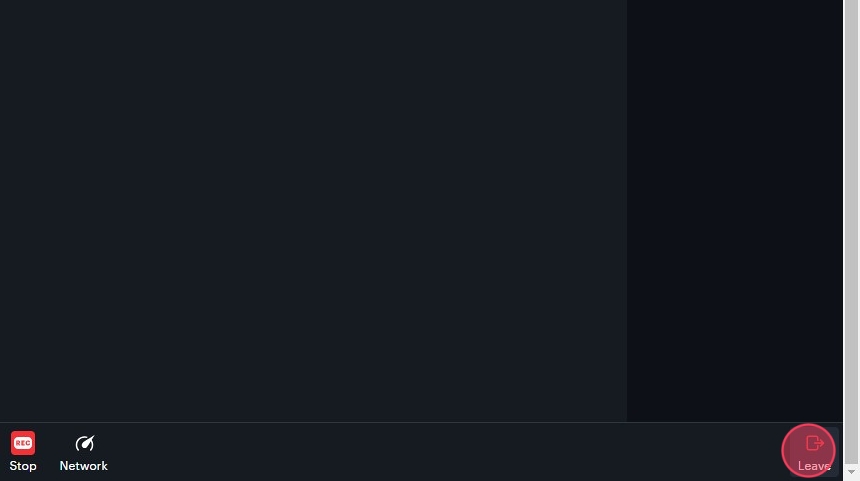
- Leave the meeting:
Schedule Meeting
- Scheduling a Meeting:
- Click Schedule meeting. A dialog box will open where you can enter meeting details.

- Entering the Meeting Title:
- Enter the title in the Enter title field.

- Selecting the Calendar:
- Select the calendar (Google, Outlook, or Microsoft 365) from the dropdown.

- Setting Up Recurring Meetings:
- Check the Recurring event box for recurring meetings.

- Setting the Date and Time:
- Enter the date and time, then click Schedule Meeting.

- Copying Meeting Details:
- Click Copy Meeting Info to copy the meeting details and send to recipients.

- Adding Meeting to Calendar:
- Click Add to Calendar to add the meeting details to your selected calendar.
