

The steps below cover porting numbers in to VOXO. To port a number out to a different carrier (including a fax number), the new carrier submits the port request from their side. VOXO does not hold or prohibit port-outs, and approval is automatic — the port date is set once the request is approved.
Before you submit a port-in
A port-in moves your existing number(s) to VOXO from another carrier. Two requirements prevent most rejections:- Match the CSR exactly. Enter every field — authorized name, account number, service address, and BTN — exactly as it appears on the customer’s official Customer Service Record (CSR) and most recent bill. Even small differences cause the losing carrier to reject the request. Requesting a CSR from your current carrier first cuts down on rejections.
- Attach a recent bill. Include a bill dated within the last 30 days that shows all the numbers being ported.
VOXO and our carrier do not approve or deny port-ins. We submit the request, and your current (losing) carrier approves or rejects it based on their own records.
Porting cost
Porting fees depend on your plan and agreement. For pricing specific to your account, email VOXO support at support@voxo.co.If a port-in is rejected
Rejections come from the losing carrier with a reason code. Open the port request and use View Order Notes to see the carrier’s reason. It’s usually an address, account number, or authorized-name mismatch. Correct it and resubmit.Accessing Port Requests
Go to the Admin Portal and sign in. Click the Account tab to expand it, then select Number Porting.
Viewing Port Requests
The table has these columns:- Order Id: The unique identifier for the port request.
- PON: The Port Order Number for the request.
- Order Date: The date the port order was submitted.
- Status: The current status of the port request.
- Req Date: The port date requested.
- Type: The type of port request (for example, Normal, Toll Free).
- Next Port: The FOC (Firm Order Commitment) date: the date and time of the port.
- On Demand: Whether the port is on-demand. With an on-demand port, an admin can activate the port anytime on the port date. If you do not activate the numbers on the port date, they activate automatically at 11:00 PM CST on the date of the port.
- TN Status: The status of the telephone number(s) in the request, shown by color, with the count of numbers in each status.

Filtering Port Requests
Use the search bar to find a specific port request, and the filter dropdown to show requests by type (All, Normal, Toll Free). To filter by date or status:- Click the Filter button.
- Set either or both filters:
- Date Range: The start and end dates for the port requests you want to see.
- Status: For example, Canceled, Closed, Incomplete, Pending, or Pending Cancel.

- Click Update.

Creating a New Port Request
- Click New Request, then select Phone Number for a standard port request.

- Type the phone numbers you want to port, one per line, then click Submit.

Checking Number Portability
After you submit the numbers, Omnia checks whether each one can be ported.- Review the summary of portable numbers, which includes the provider for each.

- Review any numbers that are not portable and the reason why. You can go back and change the list if needed.

- Click Next to continue with the portable numbers.

Account Details - Automated CSR Lookup
A CSR (Customer Service Record) holds your account information with your current phone provider, such as the authorized person, account number, and service address. If Omnia can retrieve the CSR automatically, it fills in the available fields for you. Check the details and fill in anything missing:
- Authorized Person: The person authorized to make changes on the account.
- Account Number: Required only if it appears on your monthly bill.
- Account PIN: Your account may or may not have a PIN. Check with your provider.
- Company Name: The company name on the account.
- BTN: The Billing Telephone Number, the primary number on the account.
- Port Date: The date you want the port to happen. Unavailable dates are grayed out on the calendar.
- Physical Address: The location where your numbers are registered with your current provider.

Account Details - Manual CSR Entry
If Omnia cannot retrieve the CSR automatically, enter the details manually.
Submitting the Port Request
- Once everything is complete and correct, click Submit. A confirmation shows your port date. Click Yes to submit.

- The request appears in the Port Requests table with the status Pending. Some carriers need a recent phone bill or other verification. If so, VOXO support will help you provide it, then coordinate with your existing carrier to port your number(s).

- You receive a confirmation email with the port request details, then an email each time the order’s status changes (for example, Canceled, Closed, Incomplete, Pending, Pending Cancel). You can check the status anytime under Number Porting in the Omnia Admin Portal.
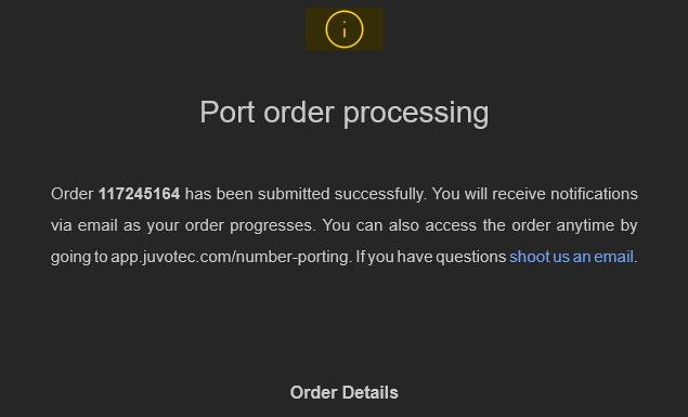
View/Edit Port Request
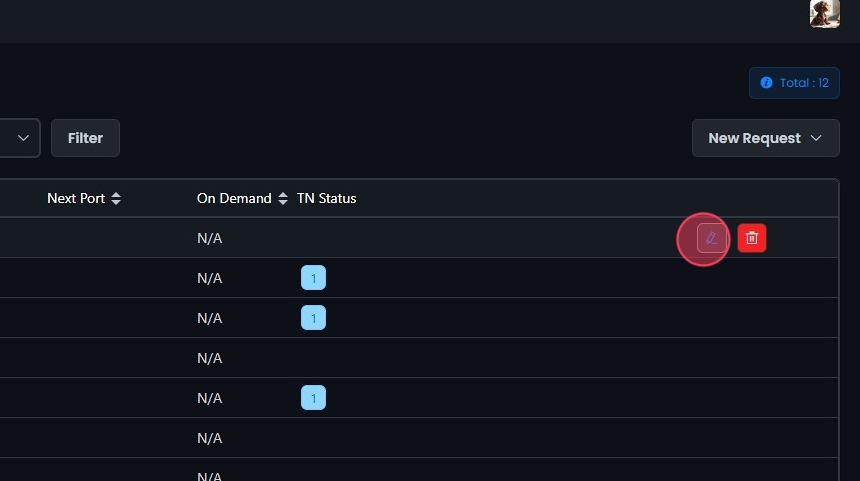
- Click the edit button next to the port request, or click the request itself.

- The View/Edit Port Request screen shows the order summary, including the order number and status. To change the details, click the edit button next to the summary.

- Edit the authorized person, account number, company name, BTN, service address, or Account PIN. Click Submit Edits, then Yes to confirm.
 From the same screen you can also:
- Add order notes: Click Add order note and type your note in the text box.

- View order notes: Click View order notes to see the history of the request, including any actions taken, rejections, and the reasons for them.

- Change the requested port date: Click New desired port date and pick a date from the calendar.

- Attach documents: Click Click to upload. Some carriers require a recent phone bill or other verification.
 When you’re done, click Submit to save your changes, then Update to confirm. A message confirms the changes were submitted.

Activating an On Demand Port
Once your port date is confirmed, you receive an email with the port date and instructions. If you do not activate the numbers on the port date, they activate automatically at 11:00 PM CST. To activate the port:- Log in to the admin portal.
- Go to Account > Number Porting.
- Find your order ID (for example, 117429509).
- Click Activate Numbers.

Canceling a Port Request
- Click the Delete button (red icon) next to the request.
- Click Yes to confirm the cancellation. A message confirms the order was deleted.

Creating a New Toll-Free Port Request
- Click New Request, then select Toll Free.

- Type the toll-free numbers you want to port, one per line.

- Under Attach LOA, click Click to upload and upload your Letter of Authorization (LOA). The LOA authorizes VOXO to port your numbers from your current provider. Uploading an LOA is required, and only PNG, JPEG, PDF, and DOCX formats are supported. Contact VOXO support with any questions about the LOA.

- Under Attach Recent Bill, click Click to upload and upload a recent bill from your current provider.

- Click Submit. The request appears in the Port Requests table with the status Pending, and you get the same confirmation and status emails as for a standard port request.

Viewing and Editing Toll-Free Port Requests
- Find the request in the Port Requests table and click Edit, or click the request itself.
- The View/Edit Port Request screen shows the order summary, including the order number and status. Add and view order notes the same way as for a standard port request (see View/Edit Port Request above).
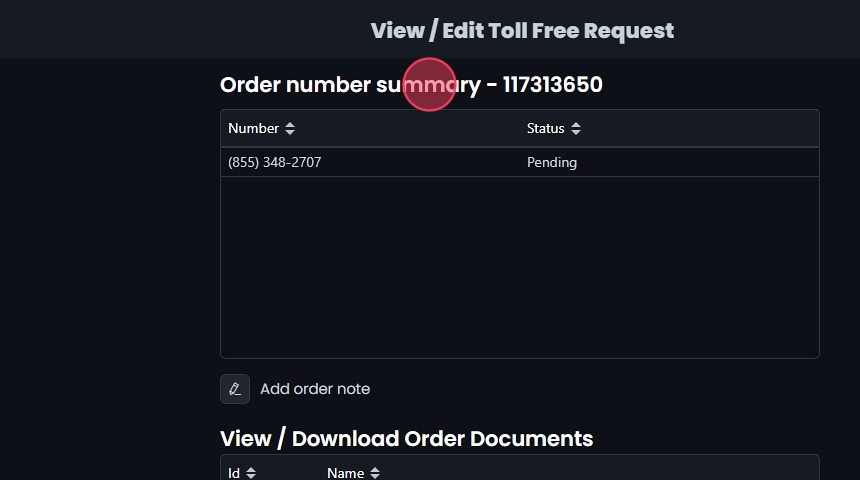
- View and download the attached documents, or upload more, such as the LOA and a recent bill.

- Click Submit at the top right of the screen, then Update to confirm. A message confirms the edited order was submitted.

Deleting/Canceling a Toll-Free Port Request
- In the port requests table, click the delete icon next to the toll-free request.
- Click Yes to confirm. A message confirms the order was deleted.
