

Email Invitation
You’ll receive an email invitation with:- Extension Number: your extension.
- Login Information: your username and password.
- Omnia Desktop URL: the link to open Omnia in your browser.
- Mobile Apps: App Store and Google Play buttons for downloading VOXO Connect.
- Quick Dial Chrome Plugin: a link to install the plugin that lets you click a phone number on a website to call it through Omnia.
- Support: a link to email support.

Logging In
Go to the User Portal, then sign in one of three ways. With your username and password: enter the username and password from your email invitation, then click Login.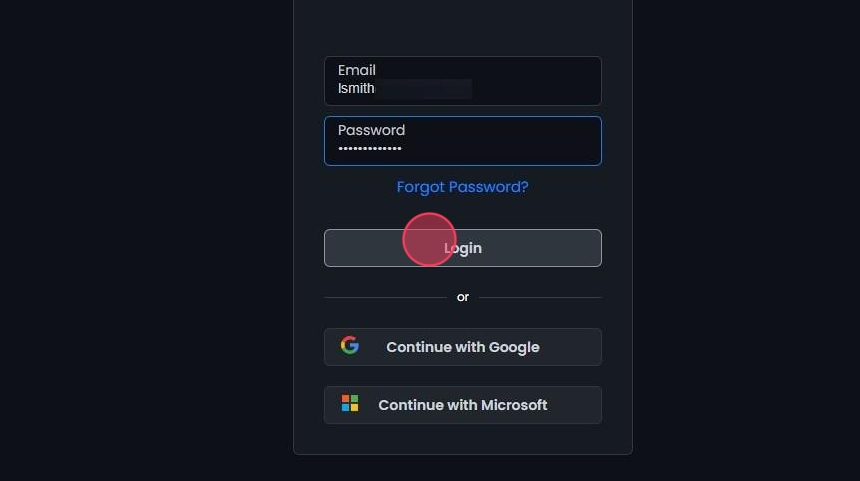 With a Microsoft account: click Continue with Microsoft.
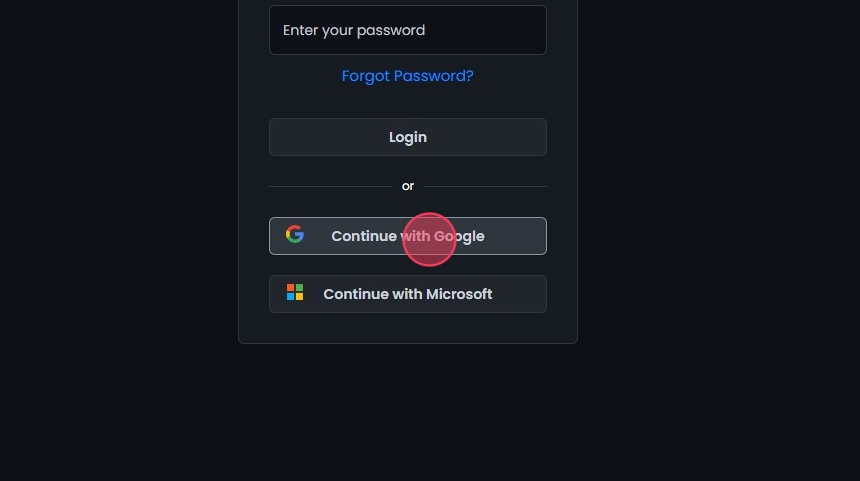
 With a Google account: click Continue with Google.
Logging Out
Click your Profile at the top right of the screen, then select Logout.
Enabling Notifications and Microphone Access
After you log in, your browser asks for these permissions. Location: if you see “app.voxo.co wants to ‘Know your location’,” choose Allow this time, Allow on every visit, or Don’t Allow.Sharing your location lets us locate you correctly when you contact emergency services.
 Notifications: when you see “app.voxo.co wants to ‘Show notifications’,” click Allow.
 Microphone: when you see “app.voxo.co wants to ‘Use your microphone’,” click Allow.

Enabling/Disabling Softphone
Click the green headset button at the top left of the screen to turn your softphone on or off. The softphone must be on for you to make and receive calls.
Choosing Audio Device
Click the dropdown next to the green headset button to choose from your available audio devices.
Navigation Menu
Click the button next to the VOXO logo to hide the left navigation menu. Click it again to bring the menu back.
Downloading Omnia to Desktop
Omnia runs in your browser, but you can also install it as a desktop app:- Go to https://app.voxo.co/ in Google Chrome.
- Select the download icon in the browser’s address bar.
- Click Install VOXO when prompted.

Installing the VOXO Quick Dial Extension
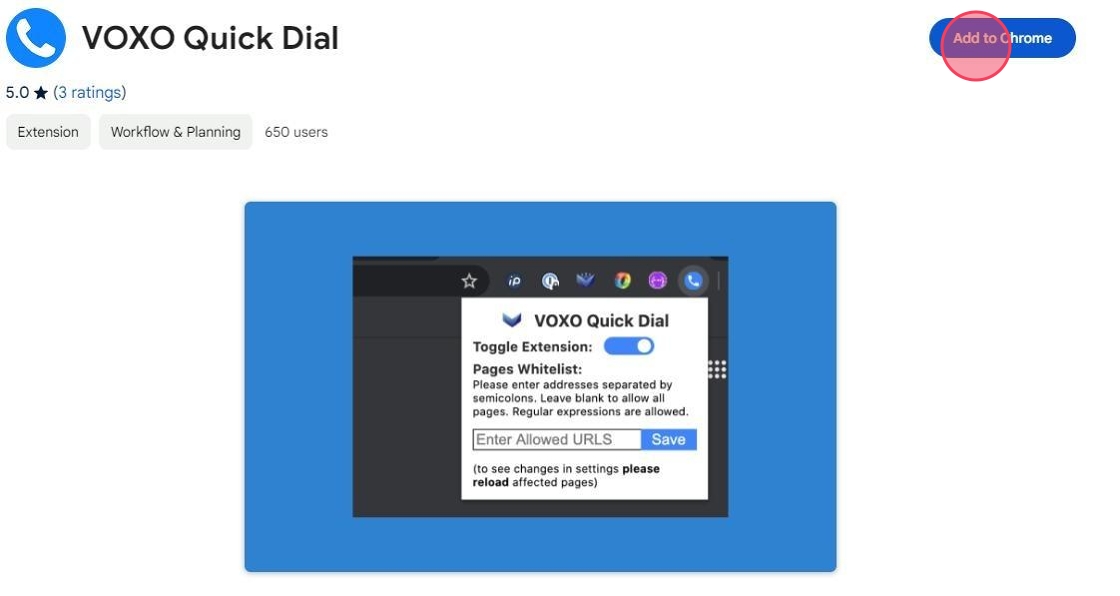
The VOXO Quick Dial extension lets you dial phone numbers on websites through Omnia. Install it either way:- Click the link in your email invitation.
- Search for VOXO Quick Dial in the Chrome Web Store and click Add to Chrome.
Forgot Password
- Open the Omnia Portal login page.
- Click Forgot Password?.
- Enter the email address on your account.
- Click Reset Password.
- Open the password reset email and follow the link.
 For more about VOXO products and support, visit the VOXO Website.
