This guide explains how to access, search, add, and edit feature codes in the Omnia Admin Portal.
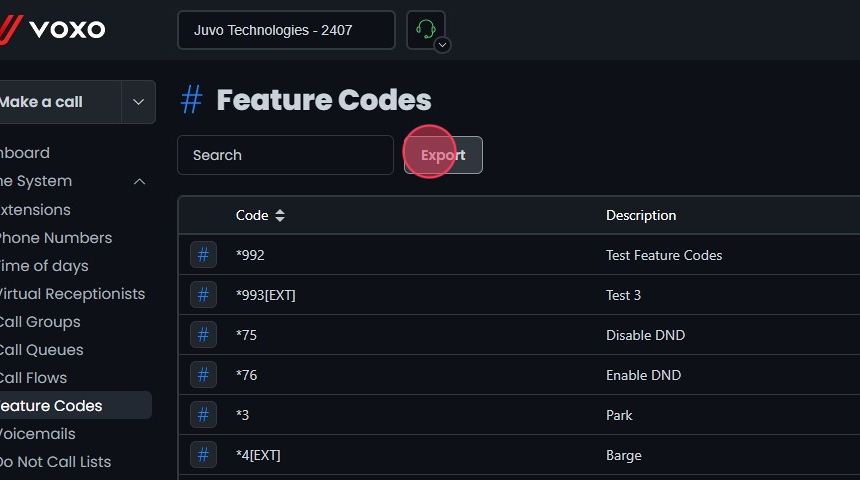
This guide explains how to access, search, add, and edit feature codes in the Omnia Admin Portal. It includes navigation steps, a list of feature codes with descriptions, and instructions for adding and editing codes. Feature codes activate functions like call forwarding, call recording, or DND, and can be used on the phone or within the application.
This document applies to the following user roles within Omnia:Account Administrator
Partner Administrator
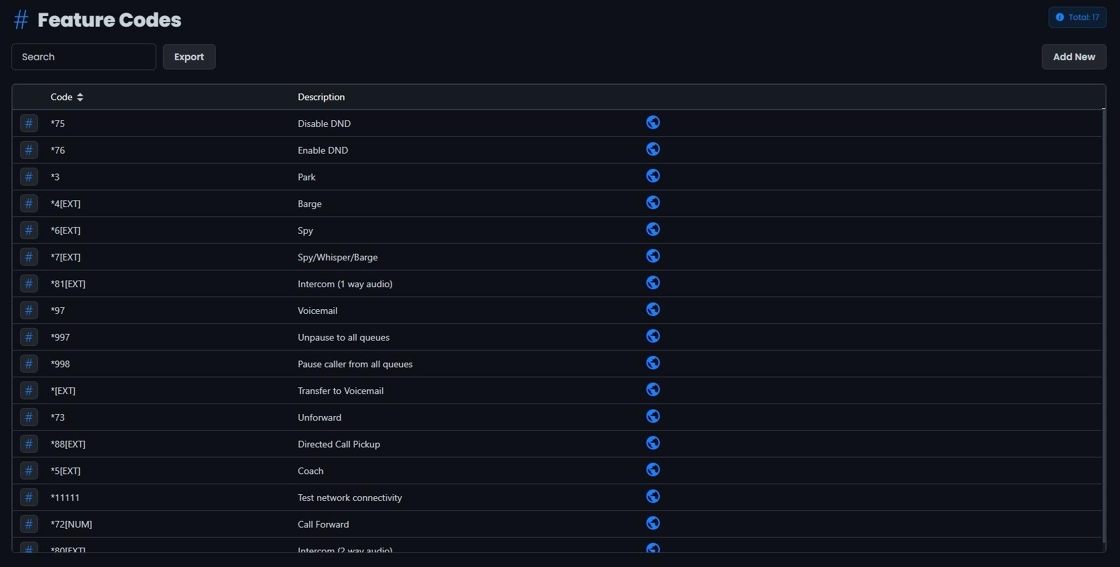
The list of feature codes provides a description of each code and its function.
Picking up a call ringing on another extension: dial *88 followed by the extension number from any handset. Use this when you don’t have a Busy Lamp Field (BLF) key programmed for that extension to grab the call.
Logging an ACD agent in or out of a call queue from the handset: create a feature code for each action (one for log in, one for log out) and set the destination to the specific queue. Agents can then dial the code from any phone without opening the desktop app. If an agent serves multiple queues, you’ll need a separate login and logout code for each queue.
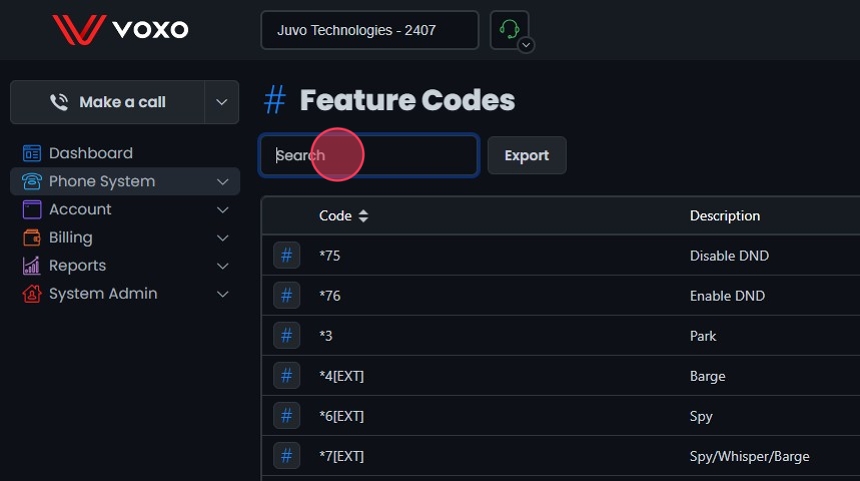
Search Bar: Quickly find specific items by typing the name or a keyword in the search field. The system will filter the list based on your search input, displaying the relevant results.
Sort: Click the sort icons next to the column headers to arrange items in ascending or descending order.