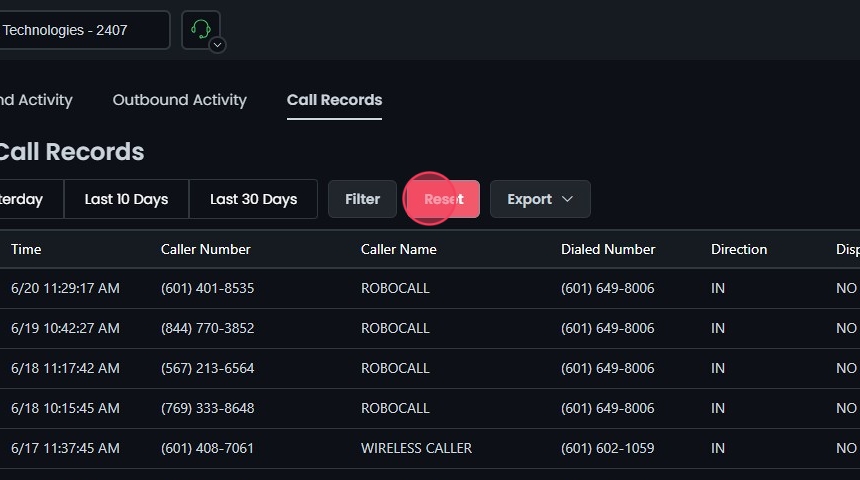
This guide provides step-by-step instructions on how to access, view, and manage call records within the Omnia Admin Portal.
This guide provides step-by-step instructions on how to access, view, and manage call records within the Omnia Admin Portal.
Access to this Report:Access to this report is based on your user role. You may not be able to access and view a specific report and all of its features if your role does not permit it.
Use the Yesterday, Last 10 Days, or Last 30 Days buttons to quickly filter the call records.
Filter Settings:
Click Filter to open the filter settings.
Select Date Range:
Choose the start and end dates to define the period for which you want to view the call records.
You can use preset options like Last Week, Last Month, Last 3 Months, Last 6 Months, and Last Year.
In addition to the date range, you can also filter by a specific time range within the selected dates.
Clear Filters:
Click Clear to remove the filters if needed. This allows you to start over while picking from your date ranges.
Advanced Filters:
Select the call direction, filter by specific criteria (branch, phone number, caller name, etc.), dispositions (answered, no answer, busy, failed), and whether the call was presented.
Presented means a call attempted to reach a user.
A phone number entered in the filter matches both the Caller Number and the Dialed Number, so a single search returns both inbound and outbound calls involving that number.
For calls that were answered and then transferred between extensions, the Duration is the total answered duration of the call — it isn’t split per extension, so summing Duration counts the full time the call was connected, including any time spent on the original extension before the transfer.
Apply Filter:
Click Update to apply the filter settings.
The details will be displayed on the screen based on your filters.
Reset Filters:
Click Reset to remove your filters and start over if needed.
Use the Export button to download the call records data in CSV format.
Click OK to confirm the export.
If you don’t see the Export button above the calls table after applying a filter, do a hard reload of the page (Ctrl + F5 on Windows, Cmd + Shift + R on Mac) — the toolbar can stay cached after a long-running session, and a hard reload brings the Export button back.