This guide provides step-by-step instructions on how to add new accounts within the Omnia Admin Portal.
This document applies to the following user roles within Omnia:Partner Administrator

Accessing System Admin - Accounts

  1. Navigate toSystem Admin - Accounts:
  • Go to the Admin Portal and sign in.
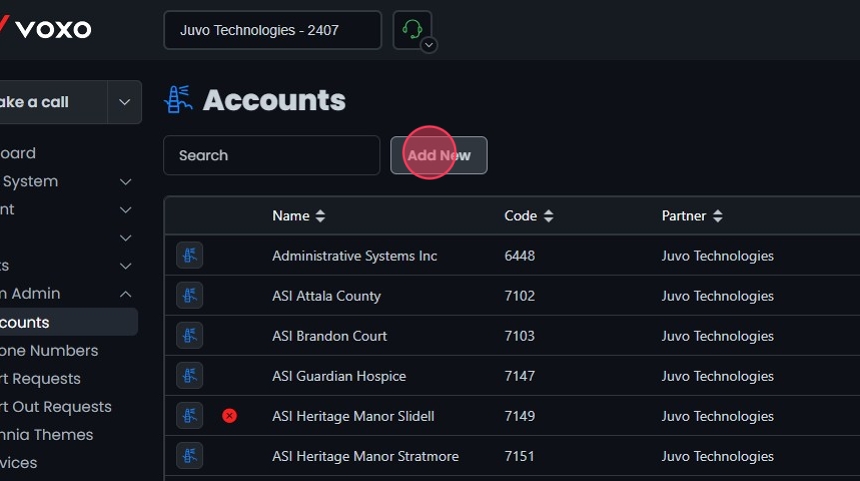
  • Click the System Admin tab to expand it, then select Accounts.

Creating a New Account

  1. Add New:
  • To add a new account, click the Add New button.
  • Only Partner Admins can create new accounts.

General

  1. General Settings:
  • After clicking the Add New button, you will be taken to the General Settings tab.
  • Fill in the required fields:
    • Enforce Two-Factor Authentication for organization: Check this box if you want to enforce two-factor authentication.
    • Residential Account: Check this box if the account is residential.
    • Enter name: Type the account name. This name will be used as the default caller ID.
    • Enter billing id: Type the billing ID.
    • Select time zone: Choose the appropriate time zone from the dropdown menu.
    • Bill Start Date: Click on the calendar icon to select the bill start date.
    • Billing Information (May not be required): Enter the billing details, which may include:
      • First Name
      • Last Name
      • Email
      • Phone Number
      • Address: Use the search bar to find and enter the address.
    • Register SMS Brand: Check this box if you need to register an SMS brand.
  1. SMS Brand Registration:
If you checked the Register SMS Brand box, fill in the additional fields required for SMS brand registration:
  • Organization Type: Select the organization type from the dropdown menu (e.g., Government, Non-Profit, Private Profit, Public Profit).
  • Brand Vertical: Select the brand vertical from the dropdown menu (e.g., Agriculture, Communication, Construction).
  • Company Name
  • EIN
  • Street
  • City
  • State
  • Postal Code
  • Country
  • Email
  • Phone
  • Website

Pricing

  1. Pricing Settings: Navigate to the Pricing tab. Fill in the pricing details for the voice products:
  • Unlimited Extension
  • Toll Free Minutes
  • SIP Trunk
  • Fax Service
  • International Minutes
  • Live Transcription Service For custom products, select the product from the dropdown menu, and enter the price and quantity:
  • Product: Select from options such as Managed Services or Internet.
  • Price: Enter the price.
  • Quantity: Enter the quantity.
  • Description: Enter a description for the custom product.
  • Click Add a product to include additional custom products. Check the Verify product pricing box to ensure all product pricing is accurate before saving.

Conduits

  1. Adding Conduits:
  • Navigate to the Conduits tab.
  • Enter the Conduit Prefix. Note that conduits only work when dialing 6 digits or less.
  • Select the conduits to assign:
    • Use the Available list to search and select conduits. Only accounts with conduit prefixes are listed.
    • Move selected conduits to the Assigned list using the arrow buttons.
Conduits allow extensions to dial extensions in other accounts by using a prefix and the extension number. This feature enables users from multiple accounts to communicate via extension-to-extension dialing as if they were all part of the same account, facilitating easy internal communication across different departments or locations.

Create Account

  1. Create Account:
  • After filling in the necessary details, click the Create button.
  • A warning message will appear: “Confirm Basic Account Creation?” Click Yes to confirm or No to cancel.