

A new extension can register and place outbound calls as soon as it’s online, but it won’t receive inbound calls until it’s added to a routing destination — a call group, a call queue, or directly on a phone number. If a phone has dial tone and can call out but never rings, this is usually why.
Accessing Extensions
Go to the Admin Portal and sign in. Click the Phone System tab to expand it, then select Extensions.
Viewing and Managing Extensions
The main screen lists your extensions with their Name, Email, Number, Caller ID, Direct Dials, and Branch. The counts above the list show Total extensions and how many are Online and Offline.
 Each extension has a status icon:
- Green means online: a device (deskphone or softphone) is currently registered to the extension.
- Red means offline: no device is currently registered. The deskphone may be powered off, the user may not be signed in to the softphone, or no device has been configured yet. To see which devices have registered to an extension, open the extension and use Load online devices on the Devices tab.
 To find extensions:
- Search: Type a name or keyword in the Search bar to filter the list.
- Filter: Use the dropdown menu to show one type (All, Extension, Fax ATA, Paging, SIP Trunk).
- Sort: Click the sort icons next to column headers to sort in ascending or descending order.
 Click Export to download the list of extensions as a CSV file.
 Click Add New to add an Extension, Fax ATA, Paging, or SIP Trunk.
 Click Bulk Create to add multiple extensions at once. See Creating Extensions in Bulk.
 Click Bulk Edit to change settings such as Send Invite, Call Waiting, e911 Location, Branch, Outbound Recording, Outbound Caller ID, Outbound Faxing, and Do Not Calls on multiple extensions. See Editing Extensions in Bulk.

Extensions Actions
Each extension in the list has these action buttons:- Edit: Edit the extension.
- Delete: Remove the extension.
- Reset Status: Reset the extension.
- Reboot Devices: Reboot the devices on the extension.
- Wiretap: Start a wiretap.

Adding a New Extension
-
Click Add New and select Extension from the dropdown menu.

-
Enter the general information:
- Enable Video Meetings: Check to enable video meetings for this extension.
- Extension Number and Extension Name.
- Email: Entering an email automatically creates a User account for access to the Omnia Portal. In Users you can reset passwords, enable or disable the Operator Panel, adjust time zones, assign roles, manage reporting features, and assign users to queues.
- Send Invite: Check to send an Omnia portal invite to the email.

-
Choose the e911 location from the dropdown menu. This field is required to save the extension. Add the specific room or building for e911 purposes.

-
Select the branch for this extension, if applicable.

-
Set Outbound Recording to Yes, No, or No, but allow start/stop. Outbound recording is off by default and captures only answered calls. It isn’t inherited by extensions added later, so enable it on each new extension — use Bulk Edit to set it on many at once.
- To record inbound calls, edit the phone numbers.
- Email Recording: Enter the email addresses that should receive recorded call files.

-
Select the Outbound Caller ID.

-
Under Advanced Settings, set the directory and dialing options. The Fax ATA, Paging, and SIP Trunk sections below refer back to these fields.
- Include in Dial by Name Directory: Check to list the extension in the dial-by-name directory.
- Include in Default Phonebook: Check to list the extension in the default phonebook.
- Account Number: Enter the associated account number.
- Department: Enter the department, if applicable.
- Assign Do Not Call Lists: Select the do not call lists with numbers this extension may not dial.
- 7-digit Dialing: Enter an area code so users can place calls without dialing the area code first.

-
To add a device, go to the Devices tab and click New Device. Select the Phone Model, then enter the Device Name and Device MAC address. After you add the device, edit its settings in the Devices section of the portal.

-
On the Never Miss A Call tab, use Additional Destinations to pick a destination type (Call Group, Call Queue, Time of Day, Virtual Receptionist) and the specific destination. This sets where calls go when the extension is offline, busy, or doesn’t answer.
- If you leave it blank, these calls go to voicemail, which is created automatically for the extension.
- If you choose an additional destination, no voicemail is created automatically. To create and manage voicemails, go to Voicemails.

-
On the Faxing tab, set the fax options. Faxing features require an email on the extension.
- Enable Outbound Faxing: Check to allow outbound faxing.
- Enable Direct Fax: Check to enable direct fax.
- Fax Outbound Caller ID: Select the caller ID for outbound faxes.

-
Click Create. If the outbound caller ID you chose is an unrouted number, a popup asks whether to assign it as the extension’s direct dial number. Click Yes to route the number to the extension, or No to skip.

Editing an Extension
After you create an extension, open it to change its settings and see options that aren’t available at creation.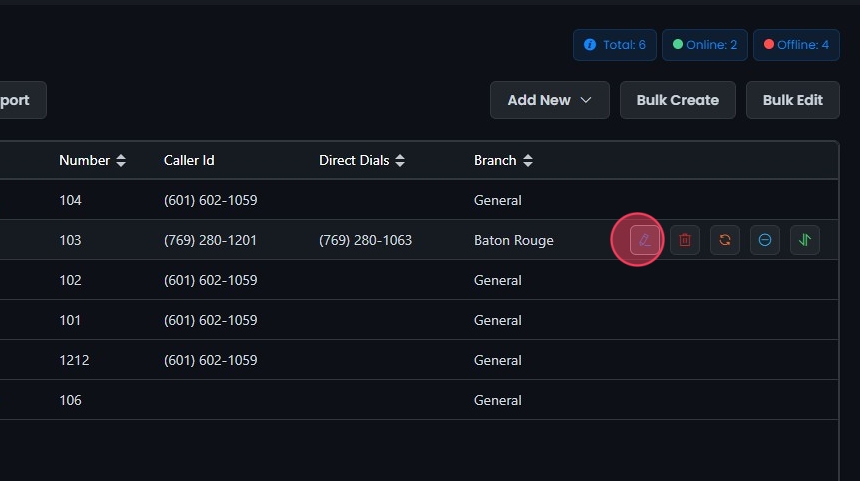
-
Under General Settings, check Enable Do Not Disturb or Enable Voicemail Message Waiting Indicator as needed.

-
To change the extension’s email, enter the new address. Check Send Invite to send an Omnia portal invite to it.
- With Send Invite checked, a new user account is created automatically for the new email. Otherwise, you must create the user account yourself in Users, where you also reset passwords, enable or disable the Operator Panel, adjust time zones, assign roles, manage reporting features, and assign users to queues.
- Delete the user account for the old email address in Users.
 Changing the email also affects:
- Voicemail: If the extension has voicemail, its email updates automatically. To manage voicemail, go to Voicemails.
- Incoming faxes: If the old email receives incoming faxes, go to the phone number for that fax and update or remove the email address.

-
Under Advanced Settings, adjust the call-handling options. Each starts with a default value that you can change here.
- Max Inbound Rings: The maximum number of inbound rings.
- Hold Music: The hold music option.
- Call Waiting: Enable or disable call waiting.
- Routing Profile: Select the routing profile from the dropdown menu.

-
On the Devices tab, hover over the blue question mark icon next to Devices to see the Manual Provision Settings:
- SIP Proxy
- DNS Type
- SIP Username
- SIP Password
- Register Expires
- Codec Support

-
Click Load online devices to see the devices currently registered (connected) to the extension. For each device you see:
- User Agent: The device type and model.
- Address: The SIP address.
- Expires: How long the registration is valid.
- Received: The IP address and port the registration came from.
- Path: The routing path of the SIP messages.
- Last Keep Alive: When the device last checked in.
- Server Id: The server handling the registration.

-
To remove a device, select its Phone Model from the dropdown menu and check Remove Device.

-
Under Never Miss A Call Settings:
- Enable Simultaneous Ring: Ring all of the user’s devices at once.
- Enable Forwarding All Calls: Forward all calls to a specified destination. Choose the Destination Type (for example, Extension or Voicemail) and Select Destination. Click Add a destination to add more. Uncheck the box to stop forwarding.

-
Click Save, then Yes to apply the changes.

Deleting an Extension
When you delete an extension:- Its voicemail is deleted automatically.
- The user account and the device assigned to the extension are not deleted. The device stays active and can be reassigned to another user. To delete the device, go to Devices. To delete the user account, go to Users.
 If the extension’s email receives incoming faxes, go to the phone number for that fax and remove the email address.

Adding a Fax ATA
-
Click Add New and select Fax ATA from the dropdown menu.

-
Under General Settings, enter the Extension Number and Extension Name, choose the e911 Location and add the e911 Specific Room/Building, optionally select a Branch, and select the Outbound Caller ID.

-
Under Advanced Settings, set Include in Dial by Name Directory, Include in Default Phonebook, Account Number, Department, and 7-digit Dialing. These work the same as for a new extension.

-
Click New Device, select the Phone Model (for example, Grandstream), and enter the Device Name and Device MAC address. After you add the device, edit its settings in the Devices section of the portal.

-
Click Create, then Yes to confirm.

Editing a Fax ATA
-
Open the Fax ATA extension.

-
Change any of these settings. They work the same as when editing an extension:
- Advanced Settings: Max Inbound Rings, Hold Music, Call Waiting, and Routing Profile.
- Devices tab: Manual Provision Settings, Load online devices, and Remove Device.
-
Click Save, then Yes to apply the changes.

Adding Paging
-
Click Add New and select Paging from the dropdown menu.

-
Under General Settings, enter the Extension Number and Extension Name for the paging extension and the e911 Location details. Set Include in Dial by Name Directory, Include in Default Phonebook, and Account Number as described for a new extension.

-
Click Create, then Yes to confirm.

Editing a Paging Extension
-
Open the paging extension.

-
On the Devices tab, view the Manual Provision Settings and click Load online devices to see the devices currently online. See Editing an Extension for what these show.

-
Click Save, then Yes to apply the changes.

Adding a SIP Trunk
-
Click Add New and select SIP Trunk from the dropdown menu.

-
Enter the required information: check Enable e911 Override if needed, enter the Extension Number and Extension Name, choose the e911 Location and add the e911 Specific Room/Building, and optionally select a Branch.

-
Choose the Authentication Method: Normal Auth, or IP Based Auth and enter the public IP.

-
Enter the number of Call Paths.

-
Select the CID Source (caller ID source) from the dropdown menu (for example, PAI, RPID, FROM).

-
Select the Outbound Caller ID.

-
Under Advanced Settings, set Include in Dial by Name Directory, Include in Default Phonebook, Account Number, Department, and 7-digit Dialing. These work the same as for a new extension.

-
Click Create, then Yes to confirm.

Editing a SIP Trunk
-
Open the SIP Trunk.

-
Change any of these settings. They work the same as when editing an extension:
- Manual Provision Settings: Hover over the blue question mark icon next to Devices.
- Advanced Settings: Max Inbound Rings, Hold Music, Call Waiting, and Routing Profile.
-
Click Save, then Yes to confirm.

Creating Extensions in Bulk
-
Click Bulk Create.

-
Hover over Import from CSV and click Download Example CSV to get a template. Fill in the template, save it, then click Import from CSV to upload it.

-
Map the columns:
- Check Send User Invites to send invites to users when their extensions are created.
- Match each CSV column to its field (Number, Name, Email, Branch, Department, Account Number, Device Name, Do Not Call List, Caller ID Number, E911 Location, E911 Location Override, Additional Destination Type, Additional Destination Name, MAC, Description, and Phonebook). You must select every listed field to continue.
- To start over, click Reset to remove the CSV and upload it again.
- Click Add. The added entries appear in the list below.

-
To remove an entry before saving, click Remove (-) next to it.

-
Click Create, then Yes to save.

Editing Extensions in Bulk
-
Click Bulk Edit.

-
On the General tab, select a Branch from the dropdown menu. If you don’t use branches, select General, which is assigned by default. Choose Apply to All Extensions to apply the changes to every extension in the selected branch.

-
Choose the extensions to edit:
- In the Available section, check the extensions you want, or check the Available box to select them all. Type keywords to filter the list.
- Click the right arrow to move them to the Assigned section.
- To take an extension back out, select it in Assigned and click the left arrow. Check the Assigned box to select them all.
- Make sure every extension you want to edit is in the Assigned section.

-
Change the settings you need: Send Invite, Call Waiting, e911 location, Branch, Department, Outbound recording, Caller ID, Faxing, Do Not Calls, and Additional Destinations.

-
Click Edit, then Yes to save the changes.
