

What you can see in this report depends on your user role.
Accessing the IVR Summary
- Go to the Admin Portal and sign in.
-
Click Reports to expand it, then select Virtual Receptionists > IVR Summary.

IVR Summary
The report opens showing today’s data. Click any column header to sort by it. The columns are:
- Unique Entries and Total Entries
- Loop Ratio: Ratio of repeated entries.
- Valid Key Total and Valid Key %
- Wrong Key Total, Wrong Ext Dial, and Wrong Key %
- Extension Dial Total and Ext Dial %
- Hangups Total and Hangup %
- Time Outs Total and Time Out %

Filtering the Data
-
To change the date range, click Yesterday, Last 10 Days, or Last 30 Days at the top of the page.

-
For more options, click Filter. Pick a start and end date and time, or pick a preset such as Last week. Click OK.

-
In the filter settings:
- Choose a distribution: Hourly, Daily, Monthly, or None.
- Under Filter By, select Virtual Receptionists.
- Select the IVRs you want to include.
-
Click Update to apply your filters.

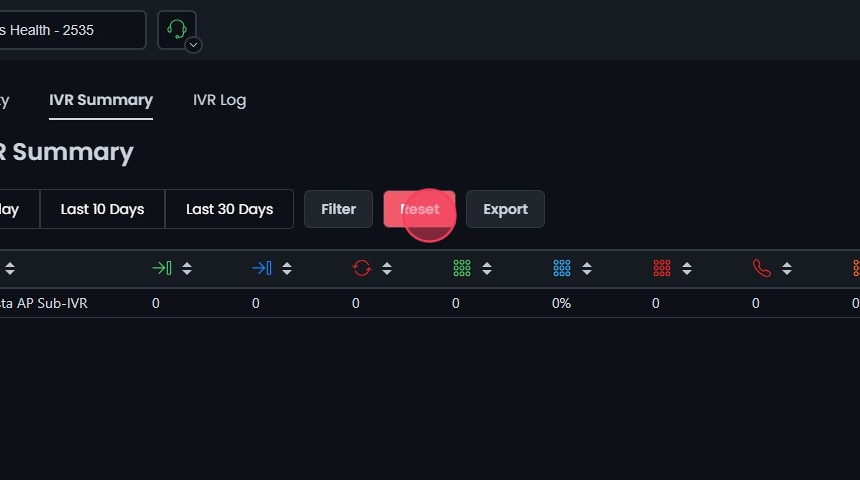
Exporting the IVR Summary
Click Export to download the summary as a CSV file.