

Accessing System Admin - Port Requests
Go to the Admin Portal and sign in. Click the System Admin tab to expand it, then select Port Requests.
Viewing Port Requests
The Port Requests page lists each request with its order ID, PON (Port Order Number), order date, status, request date, type, next port, on-demand, and TN (telephone number) status. Partner Administrators see every port request for the accounts under the Partner Admin Account. Account Administrators see only the port requests for the accounts assigned to them.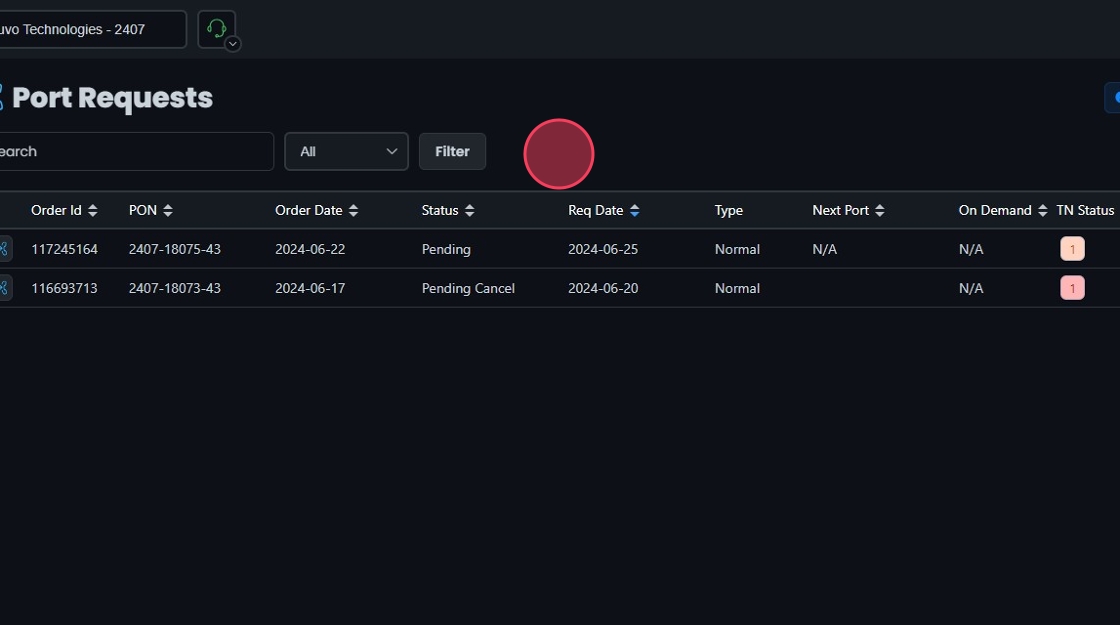 To find a request, type all or part of its order ID in the Search bar at the top of the page. Click the sort icons next to the column headers to sort ascending or descending.
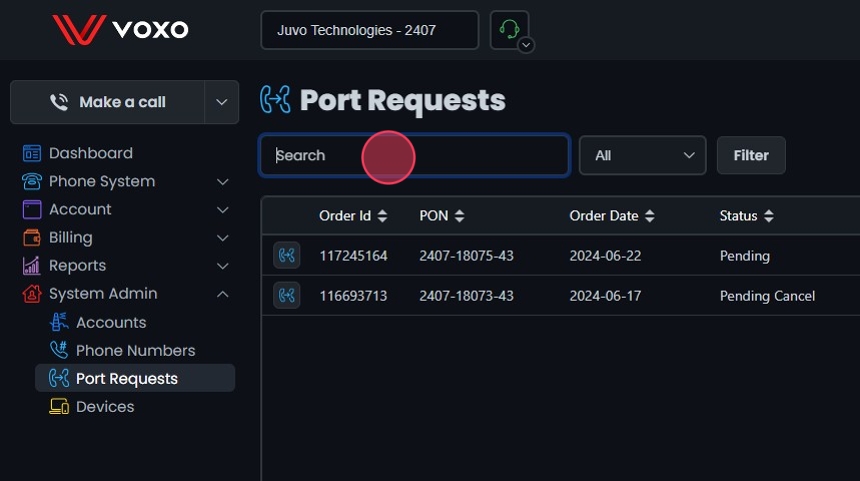 You can filter port requests by date range, status, and type (all, normal, toll-free):
- Click the Filter button.
- Select the date range.
- In Filter Settings, select a status: Canceled, Closed, Incomplete, Pending, or Pending Cancel.
- Click Update.

Editing Port Requests
Click the Edit button next to the port request, or click the request itself, to open the View/Edit Port Request screen. See Number Porting for the full edit steps.
Deleting a Port Request
Click the Delete button next to the port request, then click Yes to confirm.