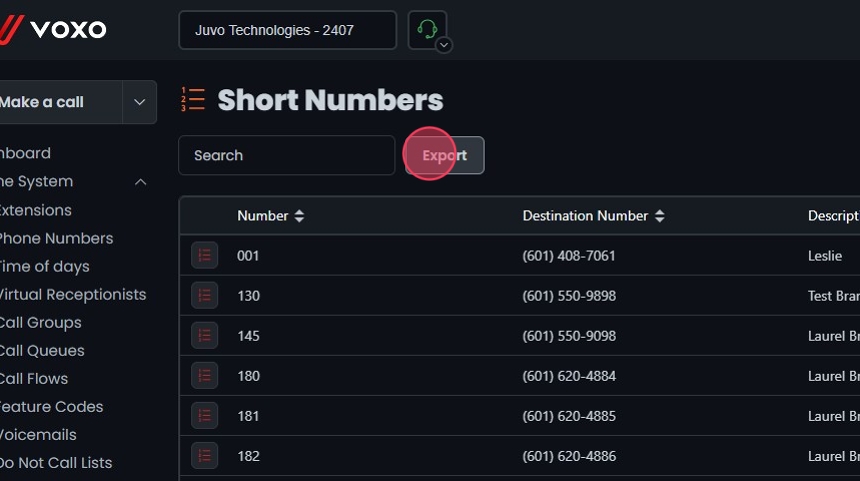
A “Short Number” is a 2-5 digit code that allows users to reach specific destinations without dialing the full 10-digit number. For example, office staff can transfer calls to a field technician’s cell phone using a short number like “02” instead of the full number. This guide provides step-by-step instructions for managing short numbers in the Omnia Admin Portal.

This document applies to the following user roles within Omnia:Account Administrator Partner Administrator

Accessing Short Numbers

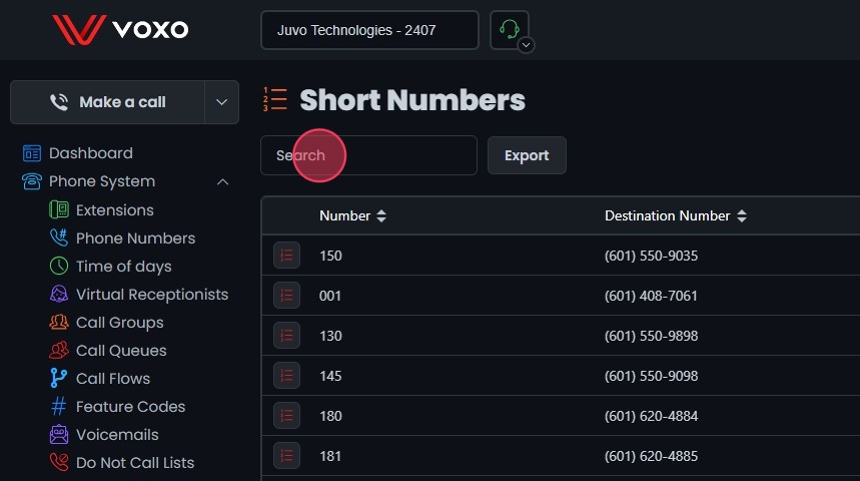
  1. Navigate to Short Numbers: Go to the Admin Portal and sign in. Click the Phone System tab to expand it, then select Short Numbers.

Adding New Short Numbers

  1. Add a New Short Number:
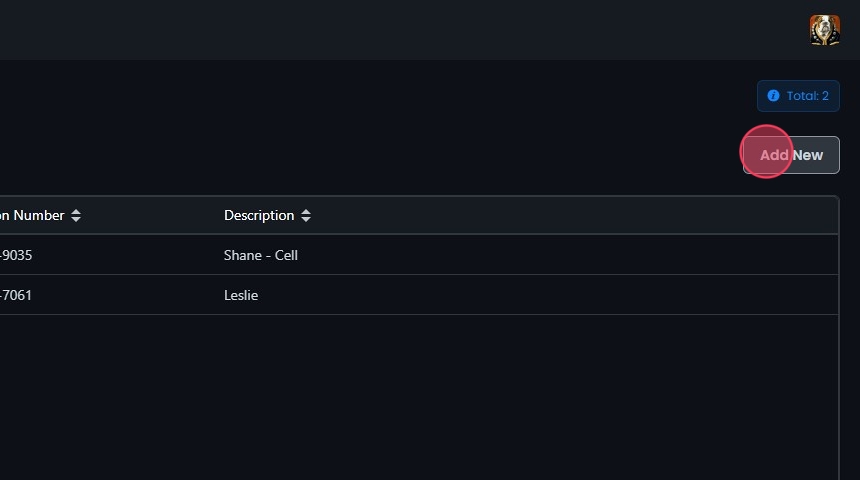
Click Add New to create a new short number.
  1. Add Numbers:
  • Number: Enter a number in the Number field. The number length must be at least two characters long.
  • Destination Number: Enter the destination number in the Enter destination number field.
  • Description: Enter a description in the Enter description field.
  1. Add Entries:
  • Click Add (+) to add an entry.
  • Click the Clear to remove an entry before adding it to the list.
  • You can continue to add multiple numbers by following this process. Added entries will appear in the list below.
  1. Remove an Entry:
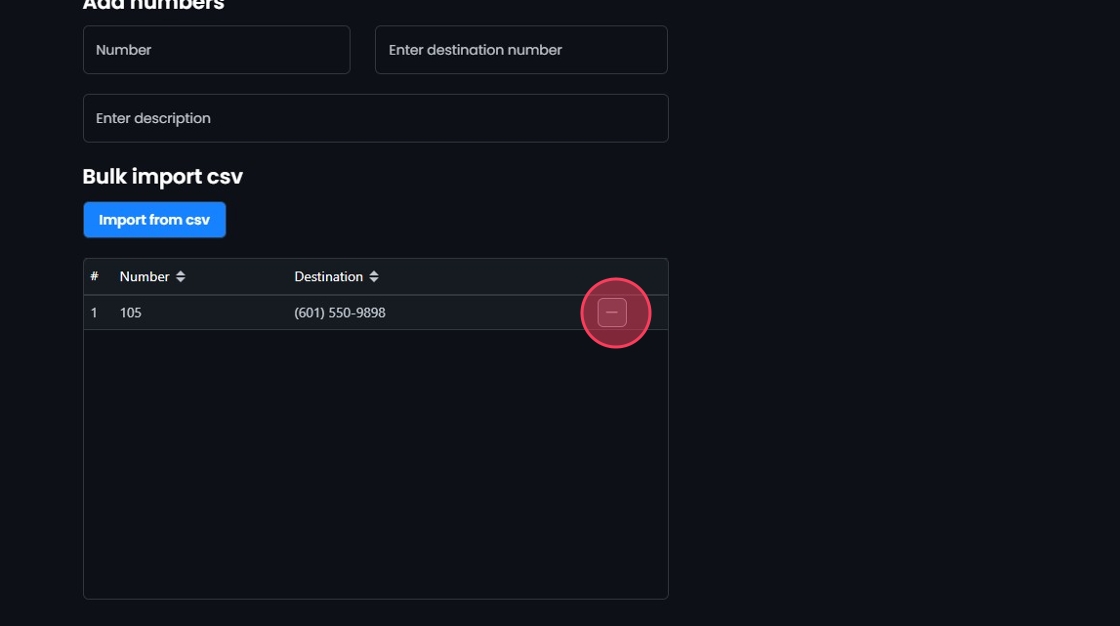
  • If you need to remove a number from the list after selecting add, clicking Remove (-) will remove an entry before saving.
  1. Save Entries:
  • Once you have completed adding entries, click Create.
  • Click Yes to confirm and save.

Bulk Adding Short Numbers

  1. Import from CSV:
  • Hover over Import from csv and click Download example csv to get a template to add your numbers in bulk.
  • Complete the template, save it, and click Import from csv to upload the spreadsheet.
  1. Map CSV Fields:
  • Select number, destination, and description from the dropdown menus for each corresponding column.
  • All listed fields must be selected to continue.
  • Click Reset to remove the CSV and reupload if needed.
  • Click Add.
  • Added entries will appear in the list below.
  1. Remove an Entry:
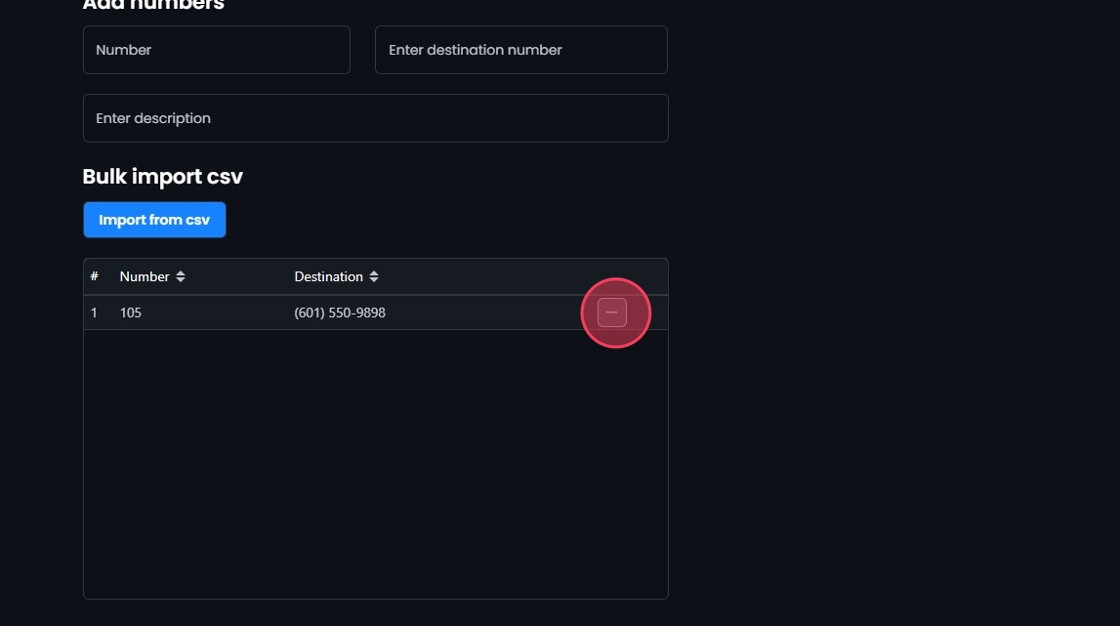
  • If you need to remove a number from the list after selecting add, clicking Remove (-) will remove an entry before saving.
  1. Save the Short Numbers:
  • Once you have completed adding entries, click Create.
  • Click Yes to confirm and save.

Editing Short Numbers

  1. Edit Short Numbers:
  • Click on the short number you want to edit or click the Edit button next to it.
  • Make your edits.
  • Click Save.
  • Click Yes to confirm and save your changes.

Deleting Short Numbers

  1. Delete a Short Number:
  • Click the Delete button next to the Short Number.
  • Click Yes to confirm the deletion.

Search and Sort

  1. Search Short Numbers:
  • Search Bar: Quickly find specific items by typing the name or a keyword in the search field. The system will filter the list based on your search input, displaying the relevant results.
  • Sort: Click the sort icons next to column headers to arrange items in ascending or descending order.

Exporting Short Numbers

  1. Export Short Numbers:
  • Click the Export button next to the search field.
  • The system will download a list of the items in CSV format.