

Recording is off by default on every extension and phone number — it has to be turned on before any calls are captured, so an empty report is almost always a setting that was never enabled rather than lost recordings. Recording is configured in two places depending on direction: inbound recording lives on the phone number, and outbound recording lives on the extension. Only answered calls generate a recording, and the setting isn’t inherited by extensions or numbers added later — enable it on each new one.
Accessing Call Recordings
- Access Call Recordings:
- Go to the Admin Portal and sign in.
- Click the Reports tab to expand it, then select Call Recordings.

Viewing Call Recordings
- View Call Recordings:
- The call recordings are displayed in a table with columns for Time, Caller Number, Caller Name, Dialed Number, Direction, Disposition, Duration, Who Answered, Packet Loss, and Jitter.
- Initially, the results shown are for today’s date.

Filtering Call Recordings
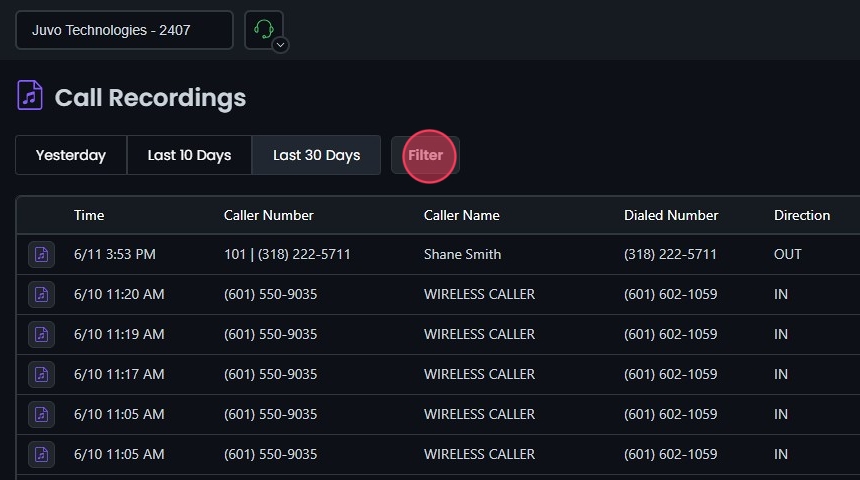
- Preset Filters:
- Yesterday: Click this button to quickly filter data from the previous day.
- Last 10 Days: Click this button to quickly filter data from the last 10 days.
- Last 30 Days: Click this button to quickly filter data from the last 30 days

- Filter Settings:
- Click Filter to open the filter settings.
- Select Date Range:
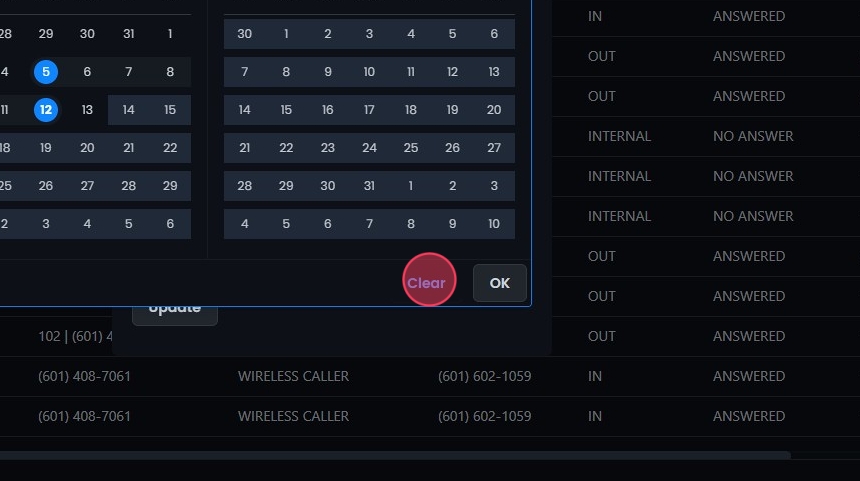
- Choose the start and end dates to define the period for which you want to view the Call Recordings.
- You can also use the preset options like Last Week, Last Month, Last 3 Months, Last 6 Months, and Last Year.
- In addition to the date range, you can also filter by a specific time range within the selected dates.

- Clear Filters:
- Click Clear to remove the filters if needed. This allows you to start over while picking from your date ranges.
- Select Call Direction:
- Choose the direction of the calls you want to filter (Inbound, Outbound, Internal, All).

- Filter By:
- Choose additional filters such as Branch, Caller Name, Phone Number, Call ID, or User to narrow down the results further.
- Enter specific criteria based on the selected filter.

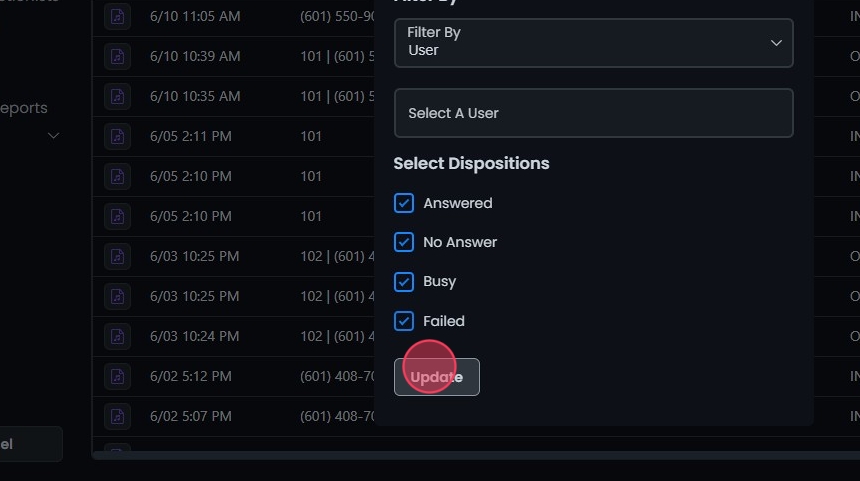
- Select Dispositions:
- Check the boxes for the call outcomes you want to filter by (Answered, No Answer, Busy, Failed).

- Apply Filter:
- Click Update to apply the filter settings.
- The details will be displayed on the screen based on your filters.
- Reset Filters:
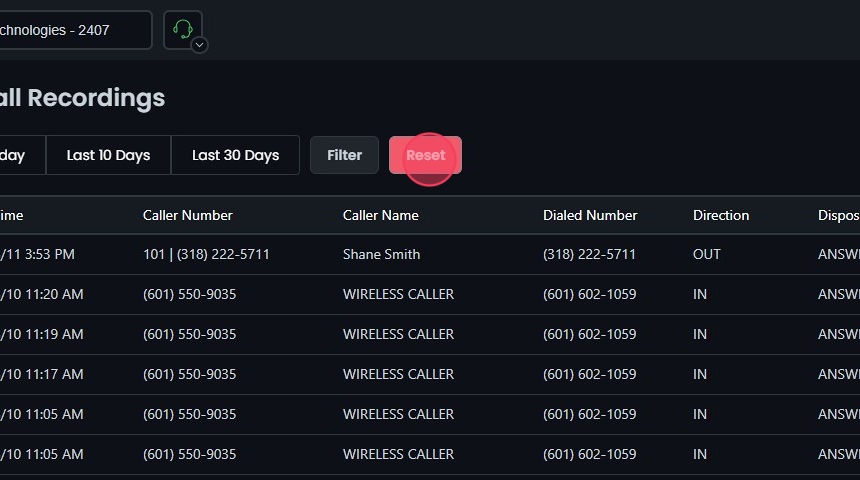
- Click Reset to remove your filters and start over if needed.
Playing and Saving Recordings
- Playing and Saving Recordings
- Access a Recording: Click on a call recording in the displayed list or click the music note next to a call recording.
- Playback Controls: A popup will appear with details of the recording, including Unique ID, Start Time, Caller Name, Caller Number, Dialed Number, Disposition, and Duration.
- Play Recording: Use the play button to listen to the recording.
- Save Recording: Click the Save recording button to download the recording.

Call recordings are saved as audio only. You can play and download the audio here, but the report does not generate a written transcript of a recording. If you need a text transcript, download the audio file and run it through a separate transcription tool.
Accessing Call Flow View
- Call Flow View:
- Access Call Flow View: Click the call flow icon next to a call recording record. This will open the detailed call flow view, providing insights into the specific call path and related actions taken during the call.
- Call Flow Details: A popup will display the call flow details, including Unique ID, Start Time, Caller Number, Dialed Number, Disposition, and a graphical representation of the call flow.

Understanding the Call Recordings Table
- Understanding the Call Recordings Table:
- Time: Shows the timestamp of the call.
- Caller Number: Displays the number of the caller.
- Caller Name: Shows the name associated with the caller.
- Dialed Number: Displays the number that was dialed.
- Direction: Indicates the direction of the call (Inbound, Outbound, Internal).
- Disposition: Describes the outcome of the call (Answered, No Answer, Busy, Failed).
- Duration: Displays the length of the call.
- Who Answered: Shows the name or extension of the person who answered the call.
- Packet Loss: Indicates the percentage of packet loss during the call.
- Jitter: Displays the amount of jitter (variation in packet arrival times) during the call.
