The Call Statistics report provides a detailed analysis of call activity within Omnia. This guide offers step-by-step instructions on how to access and view call statistics for users, as well as how to filter, sort, and export the data.
Access to this Report: Access to this report is based on your user role. You may not be able to access and view a specific report and all of its features if your role does not permit it.
Accessing User Call Statistics
Access User Call Statistics :
Go to the Admin Portal and sign in.
Click the Reports tab to expand it.
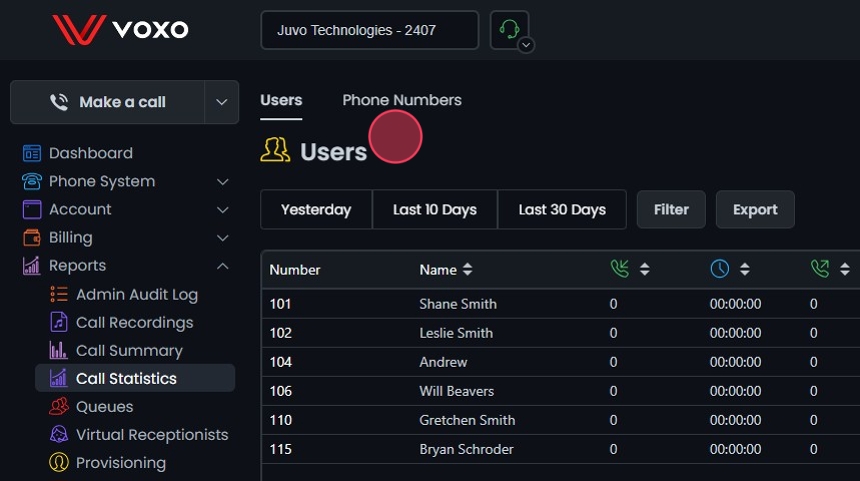
Select Call Statistics , then Users .
Viewing User Call Statistics
View User Call Statistics:
The table displays the following columns:
Number : The user’s extension number.Name : The user’s name.Call Types : Various call metrics, including:
Inbound Answered Inbound Duration Outbound Answered Outbound No Answer Outbound Busy Outbound Failed Outbound Duration Inbound Total Outbound Total Total Answered Total Talk Time Avg Talk Time Per Call Total Outbound No Answer Duration
The initial results shown will be for today’s date.
Sorting Data
Sorting Data:
Click the sort icons next to column headers to arrange items in ascending or descending order.
Filtering Data
Preset Filters:
Yesterday : Click this button to quickly filter data from the previous day.Last 10 Days : Click this button to quickly filter data from the last 10 days.Last 30 Days : Click this button to quickly filter data from the last 30 days.
Filter Settings :
Click Filter to open the filter settings.
Select Date Range :
Choose the start and end dates to define the period for which you want to view the Call Statistics.
You can use preset options like Last Week, Last Month, Last 3 Months, Last 6 Months, and Last Year .
In addition to the date range, you can also filter by a specific time range within the selected dates.
Clear Filters:
Click Clear to remove the filters if needed. This allows you to start over while picking from your date ranges.
Choose the Distribution Type:
Choose the distribution type (Daily, Monthly, or None ).
Filter By :
Branch : Filter call statistics by specific branches.Users : Filter by specific users or extension numbers.Enter the specific criteria based to narrow down the results.
Apply Filter :
Click Update to apply the filter settings.
The details will be displayed on the screen based on your filters.
Reset Filters :
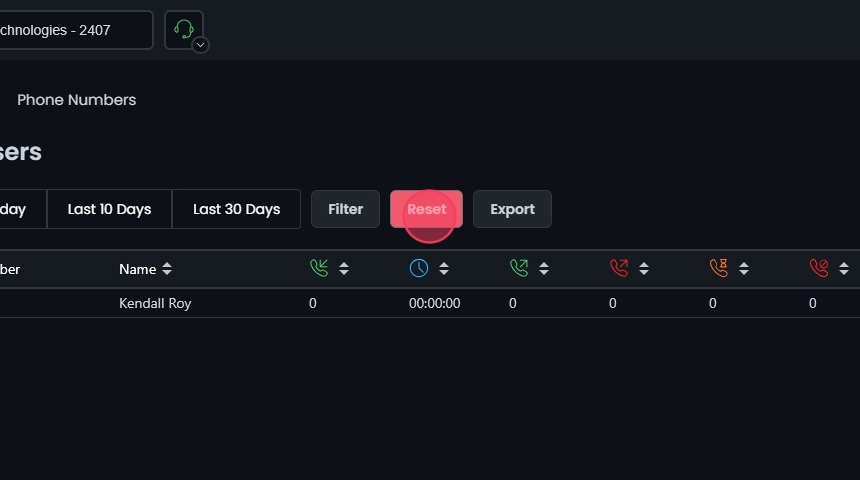
Click Reset to remove your filters and start over if needed.
Export Data :
Use the Export button to download the User call statistics data in CSV format.
Click OK to confirm the export.
Understanding the User Call Statistics
Call Metrics:
Inbound Answered: The total number of incoming calls that were answered by the user.Inbound Duration: The total duration of all answered inbound calls, typically measured in minutes and/or seconds.Outbound Answered: The total number of outgoing calls made by the user that were successfully answered by the recipient.Outbound No Answer: The total number of outgoing calls made by the user that were not answered by the recipient.Outbound Busy: The total number of outgoing calls made by the user that received a busy signal.Outbound Failed: The total number of outgoing calls made by the user that failed to connect due to technical issues or incorrect numbers.Outbound Duration: The total duration of all successfully connected outbound calls, typically measured in minutes and/or seconds.Inbound Total: The total number of all inbound call attempts, regardless of whether they were answered, missed, or failed.Outbound Total: The total number of all outbound call attempts, regardless of whether they were answered, not answered, busy, or failed.