Accessing Call Queues
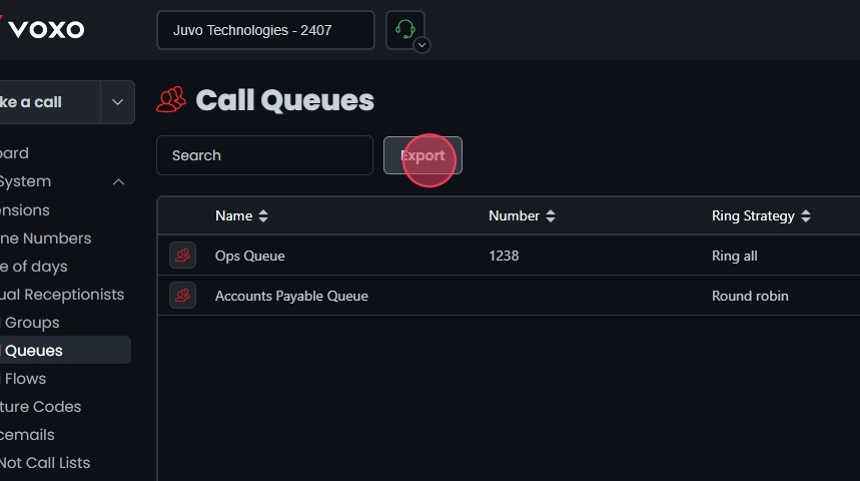
Go to the Admin Portal and sign in. Click the Phone System tab to expand it, then select Call Queues.
Adding a new Call Queue
Click Add New, then fill in the required details on the General tab.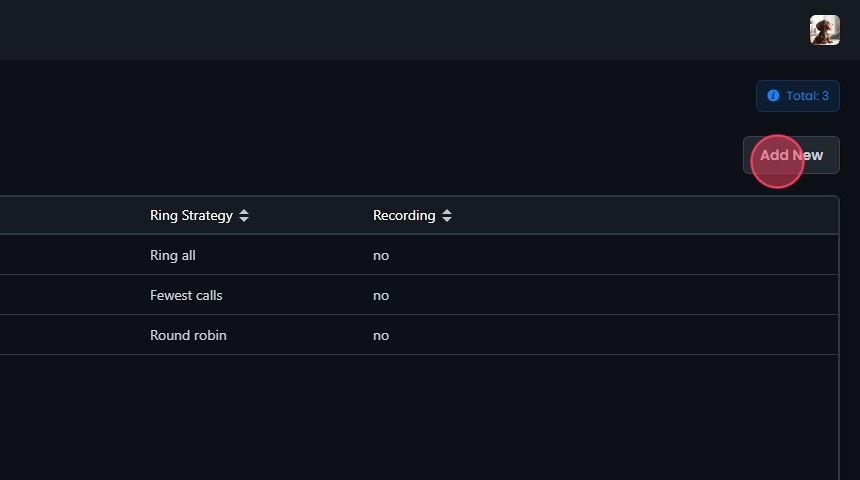 Wherever you set a destination on this page, Add a destination adds another one (it appears only for some destination types), you can click and drag to reorder destinations, and Delete removes one.
Configuring Call Queues
- Enable recording: Records calls to the queue.
- Name: A name for the call queue.
- Number: A unique number for the call queue.
- Select ring strategy: How calls ring your agents:
- Fewest calls: Rings the agent who has answered the fewest calls. Use this when you want calls distributed evenly across agents.
- Linear: Rings agents in a fixed order, always starting from the top of the list.
- Random: Rings agents in a random order.
- Ring all: Rings all agents simultaneously.
- Round robin: Rotates through the agent list in the order shown under Assign allowed agents. The next call goes to the next agent in that list, not the agent who has been waiting longest.
- Timeout (seconds): How long before the call times out.
- Branch (Optional): The branch associated with this queue.
- Select max queue length: The maximum number of callers waiting in the queue.

Timeout and Queue Full Destinations
- Timeout destinations: Where calls go when they time out.
- If queue is full: Where calls go when the queue is full.
The Timeout destinations and If queue is full fields can’t point a queue back to itself — the form won’t save that configuration. To re-queue a caller in the same queue, create a Custom Destination of type Send call to queue at position and select it as the destination here.

Configuring Conditional Routing
Check Enable redirecting call if no agents are available to send callers elsewhere when no agents are available. Under If no agents are available, choose a Destination Type, such as Voicemail, Call Group, or Another Queue, then the specific destination. Check Enable redirecting call if all agents are busy to send callers elsewhere when every agent is busy. Under If all agents are busy, choose a Destination Type, such as Voicemail or Another Queue, then the specific destination.

Abandoned Call Notifications
Check Enable abandoned call notifications, then enter the address to notify in Notify abandon email.
Exit and Callback Settings
Click the Exit and Callback Settings tab, then check the box to enable queue callback.
- Caller ID number: The number shown as the caller ID on callbacks.
- Max attempts: The maximum number of callback attempts.

Play When Connecting to Agent
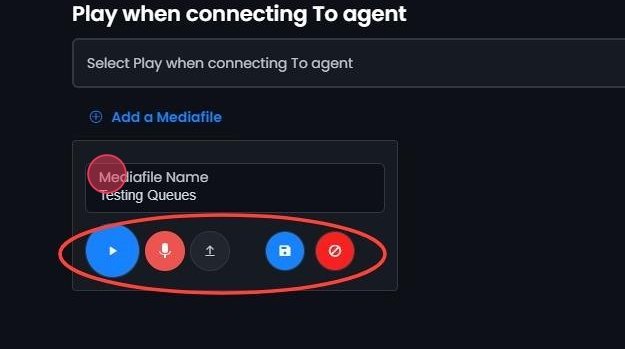
Pick a message to play to the caller when they’re connected to an agent. Choose an existing media file from the dropdown, or record a new one. Click Preview media to listen to it, or X to remove it. To record or upload a new file, click Add a Mediafile.

- Playback: Plays the media file.
- Press and Hold To Record: Click and hold to record a message.
- Upload File: Adds an existing audio file.
- Cancel Changes: Reverts to the previous settings.
- Enter a name: Type a name in the Mediafile Name field before saving.
- Save Changes: Saves the recorded or uploaded file. It then appears in the dropdowns.
Enabling and Configuring Exit Key
Check Enable Queue Exit Key. Under Exit key settings, pick a key (0-9) from the Exit key dropdown.
Configuring Exit Key Destination
Choose where calls go when the caller presses the exit key: a Destination Type, such as Voicemail, Custom, or Another Queue, then the specific destination.
Media Settings
Click the Media tab.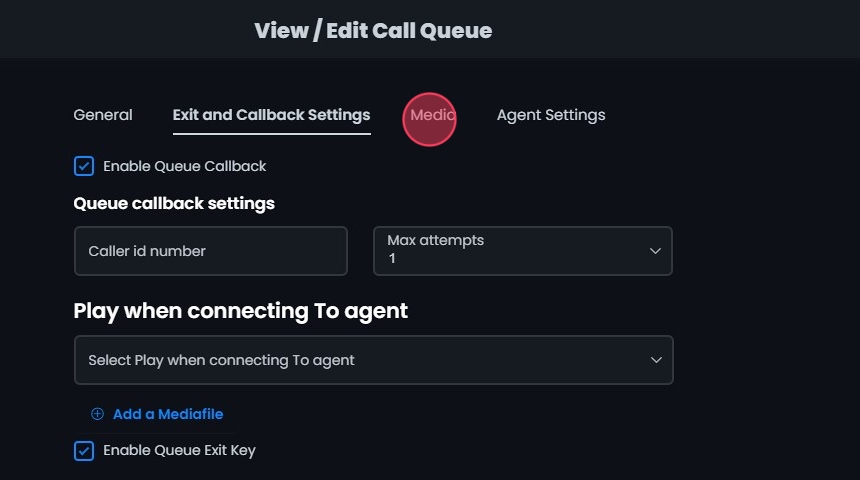 To record or upload a new file, click Add a Mediafile. The recording and upload options are the same as in Play When Connecting to Agent.
 Under Play to the caller while waiting in the queue, choose what callers hear while they wait:
- Music on hold: Plays music.
- Ringing: Plays a ringing sound.
- Music on hold, then ringing: Plays music first, then switches to ringing.

Setting Up Periodic Announcements
- Check Enable periodic announcements.
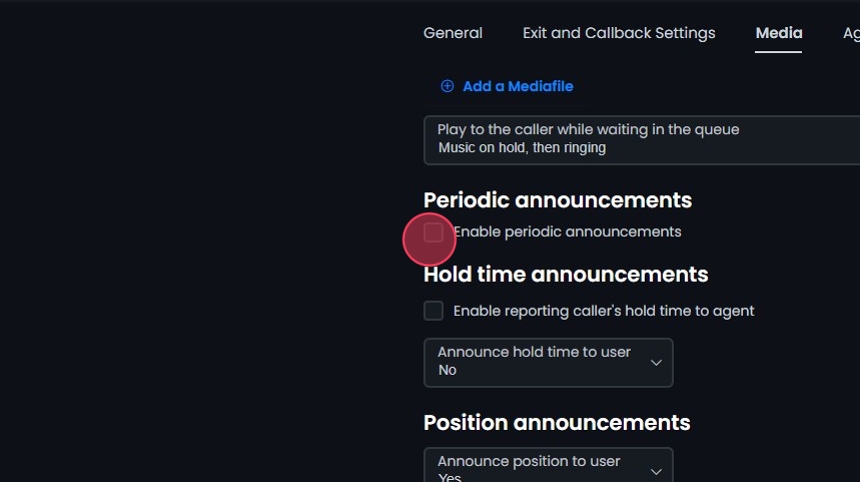
- In the Frequency dropdown, choose how often the announcement plays.

- In the Periodic Announce Message dropdown, choose the message. Click Previewmedia to listen to it, or X to remove it.

Hold Time Announcements
- Check Enable reporting caller’s hold time to agent.
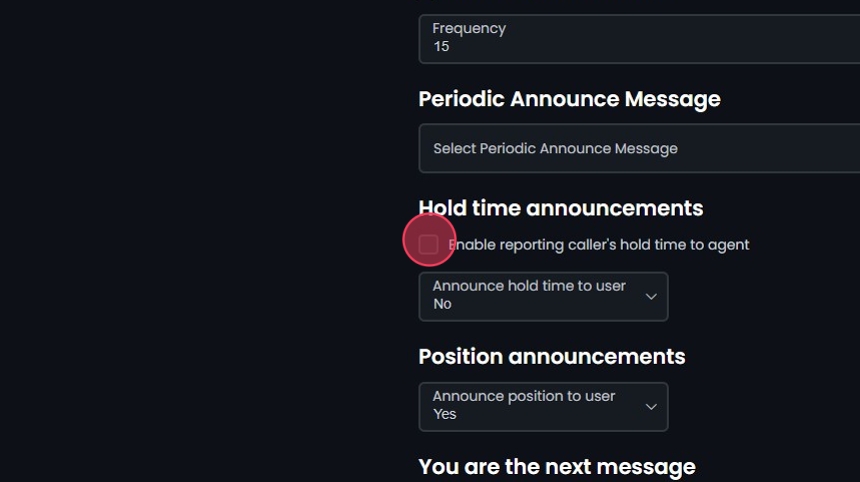
- In the Announce hold time to user dropdown, choose whether to announce the hold time to the caller:
- No: Don’t announce it.
- Yes: Announce it continuously.
- Once: Announce it once.

- If you chose Yes or Once, pick the estimated hold time announcement in the Est hold time message dropdown. Click Previewmedia to listen to it, or X to remove it.

Setting Up Position Announcements
- In the Announce position dropdown, choose whether to announce the caller’s place in the queue:
- No: Don’t announce it.
- Yes: Announce it.
- If less than: Announce it if it’s less than the number you enter in the enter limit field.
- No more than: Announce it if it’s no more than the number you enter in the enter limit field.

-
Choose the messages to play:
- You are the next message: When the caller is next in line.
- There are message: When other callers are ahead in the queue.
- Calls waiting message: When multiple calls are waiting.
- Thank you message: The thank-you message played to the caller.

- In the Announce frequency dropdown, choose how often hold and position announcements play: 0 for no announcements, or a number of minutes (for example, 5, 10, 15).

Agent Settings
Click the Agent Settings tab.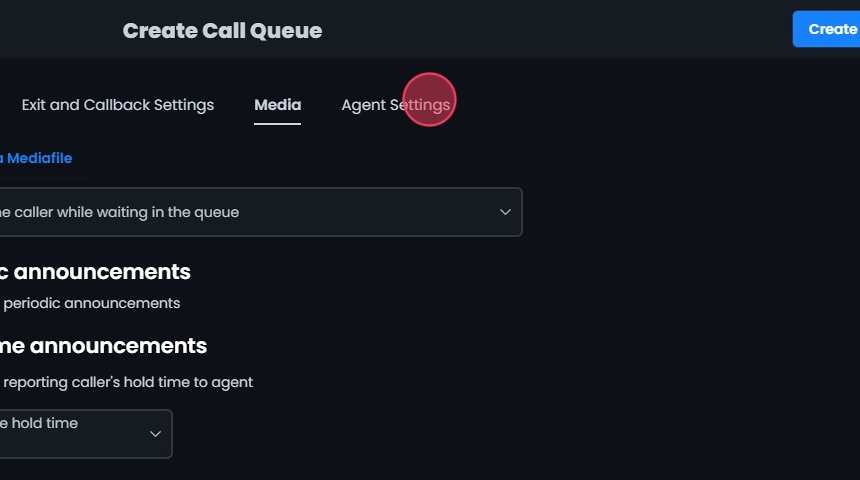
- Enable ringing agent with in use status: Agents receive calls even when their status is “in use.”
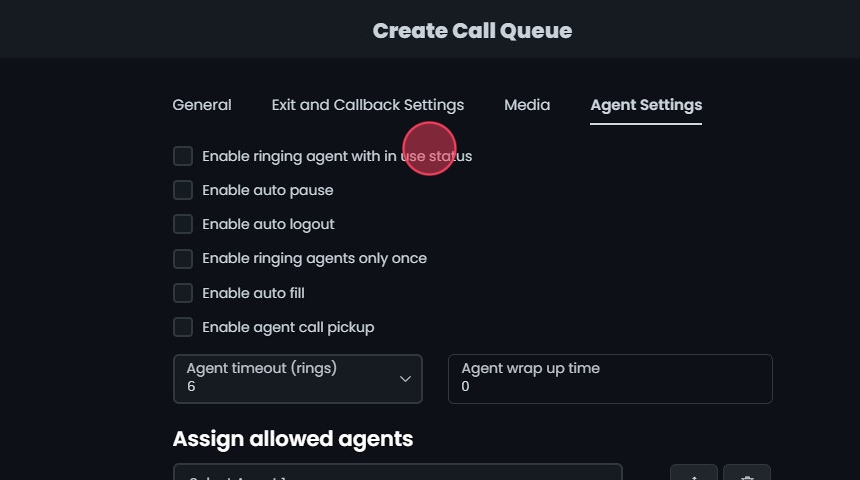
- Enable auto pause: Pauses agents after a call so they can wrap up.
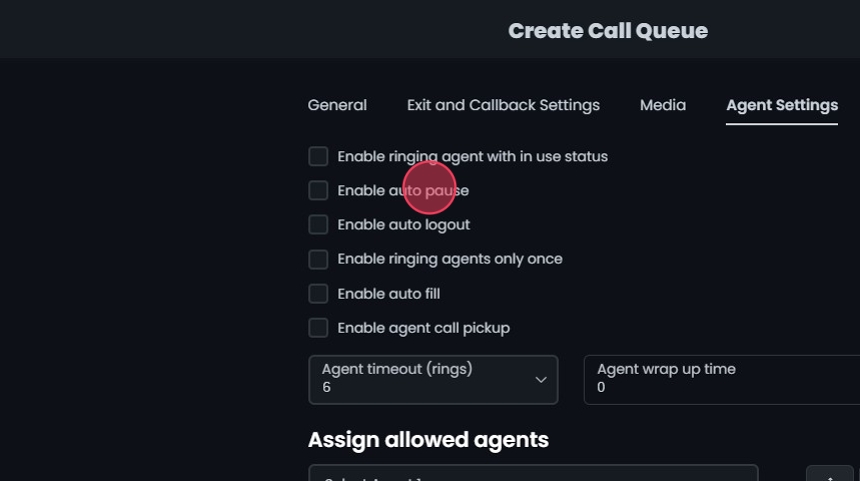
- Enable auto logout: Logs agents out after a set period of inactivity.
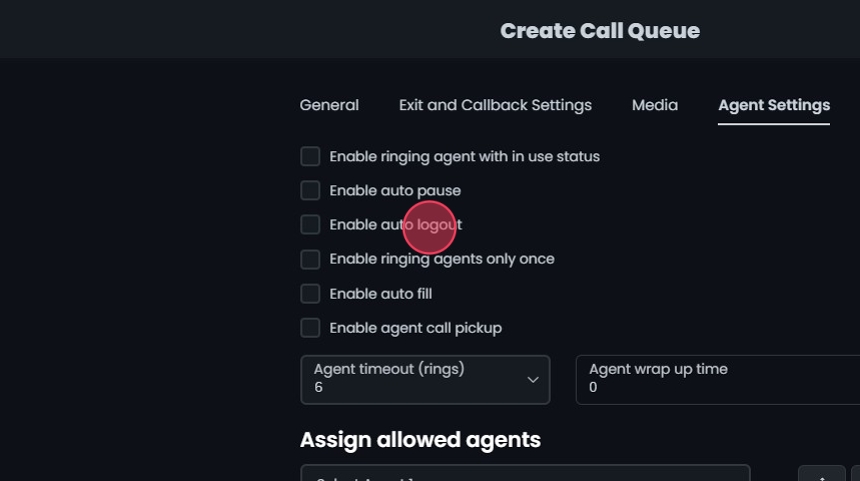
- Enable ringing agents only once: Rings each agent only once per call.
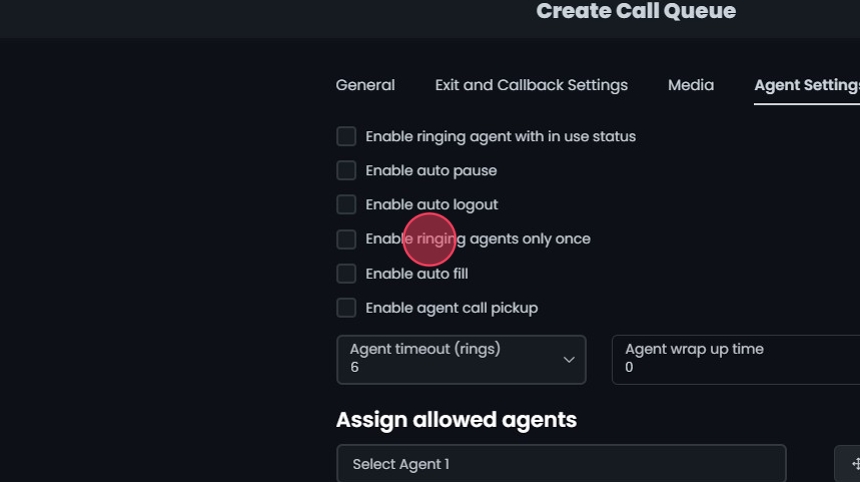
- Enable auto fill: Assigns available agents to calls automatically.
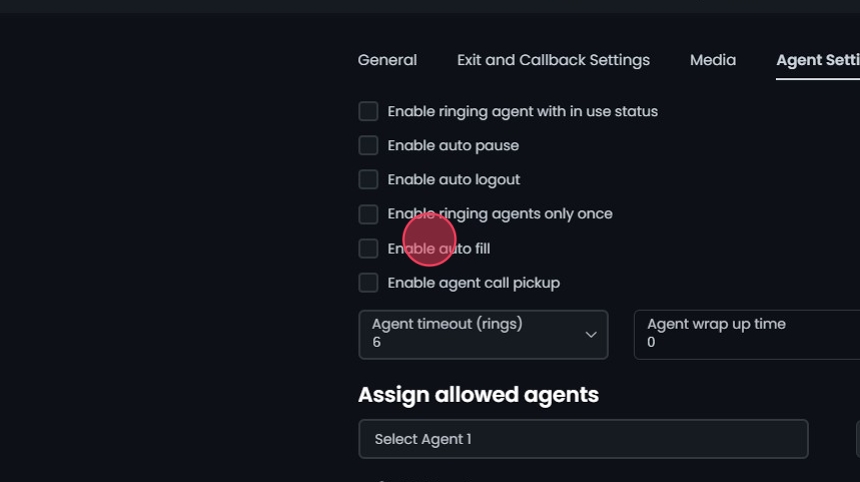
- Enable agent call pickup: Agents can pick up calls from other agents.
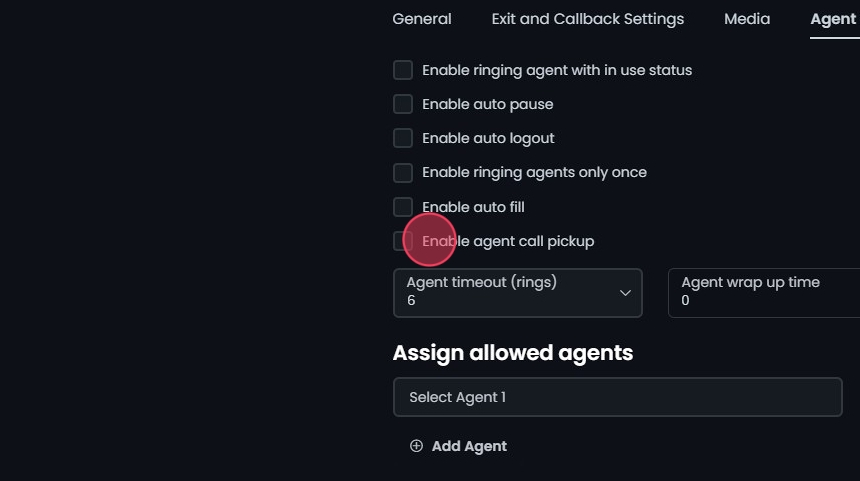
- Agent timeout (rings): How many rings (for example, 6) before the call is redirected.
- Agent wrap up time: In seconds. How long after an agent finishes a queue call before they are eligible to receive the next queue call.

Assign Allowed Agents
- In the Assign allowed agents dropdown, select the agents for this queue.
- Click Add Agent to add more agents.
- If you use the Linear or Round Robin ring strategy, put the agents in the order you want calls to ring. Click and drag to reorder them.

Create and Save
Click Create, then Yes to save the call queue.
Editing Existing Call Queues
- Click the call queue, or click the Edit button next to it.
- Make your edits. To add or remove agents from the queue, open the Agent Settings tab and use the Assign allowed agents list — click Add Agent to add a member, or Remove Agent to take one off the queue.
- Click Save, then Yes to confirm.

Deleting a Call Queue
Click Delete next to the call queue, then click Yes to confirm.
Search and Sort
- Search: Type a name or keyword in the search field to filter the list.
- Sort: Click the sort icons next to the column headers to sort ascending or descending.

Exporting Call Queues
Click Export next to the search field to download the list as a CSV file.