

Agent Activity - Queue Agents
To log an agent in or out:- Select the queue from the dropdown at the top of the screen (for example, “Ops Queue”).
- Use the status filter dropdown on the right to show All, Logged In, or Logged Out agents.
-
In the Queue Agents section, find the agent and toggle the switch next to their name to Logged In or Logged Out.

 To call an agent, click the agent and select Call.
 To turn off an agent’s Do Not Disturb (DND), click the agent and select Disable DND.

Active Calls - Listen & Coach
Click Listen to monitor an active call without either party knowing.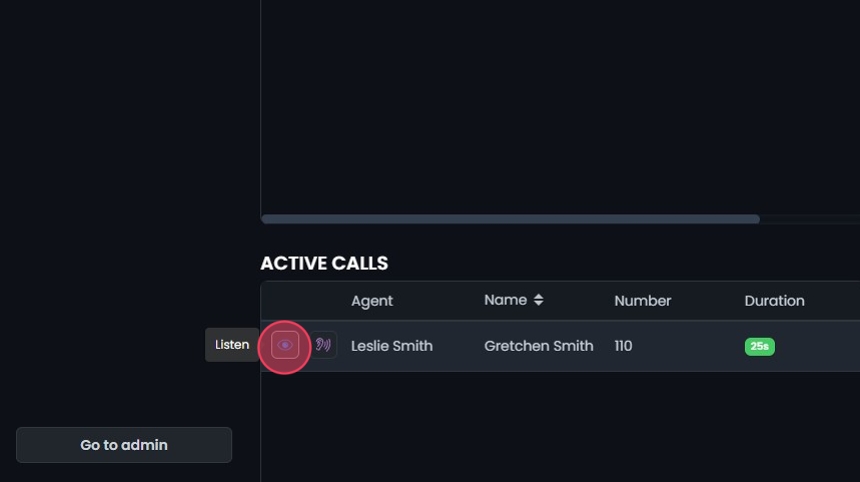 Click Coach to talk to the agent during the call. The caller can’t hear you.

Calls Waiting
To answer a waiting call, go to the Calls Waiting section and click Pickup next to the call.
Live Stats
Live Stats lets you build your own live dashboards for the queues in your account by dragging in widgets. Go to Call Queues, then select Live Stats. To create a layout:
- Click the gear icon next to the layout dropdown at the top of the dashboard and select Create layout.
- Enter a name and select the queues to include.
-
Click Submit, then OK. You can now add widgets to the layout.

Widgets Types and Glossary
Table widgets
The Queues, Agents By Queue, and Agent Totals tables are searchable, and you can sort them and choose which columns to show. To choose columns, click the filter button and select or deselect columns.- Queues: Statistics for each queue in the current layout.
- Agents By Queue: User statistics and logged in/out and pause status for every agent in every queue in the layout. You can log agents in or out, pause or unpause them, and click Export to export the agent data.
- Agent Totals: Like Agents By Queue, but agents who are in more than one queue get a single row instead of one per queue. You can log agents in or out and pause or unpause them in all their queues, and click Export to export the agent data.
- Waiting Calls List: Caller information and wait time for every call waiting in the queue.
- Active Calls List: A searchable table of caller information and duration for every call connected to an agent.

Stat widgets
Each stat widget shows totals for all queues by default. Use the checkboxes in the table to choose which queues to include.- Abandoned Calls: The number of abandoned calls, the abandon rate, and the average wait before an abandon. An abandoned call is one where the caller hangs up before reaching an agent.
- Active Calls: Calls currently connected in the queue. This doesn’t include calls an agent is on outside the queue.
- Agent Outbound: Outbound calls by agents servicing the queue, split into answered and no-answer.
- Average Answer Time: How long callers wait, on average, before an agent connects, across all selected queues.
- Complete Callbacks: Callbacks completed for the selected queues, split into successful and timed out.
- Exits: How many times callers left the queue by pressing a key or reaching the queue timeout, split into timeout and key counts.
- Inbound Answered: Queue calls that connected to an agent, including calls transferred out of the queue.
- Queued Callbacks: Calls waiting for a callback in the selected queues.
- Total Inbound: All inbound traffic to a queue, including Inbound Answered, Exits, and Abandoned counts.
- Transfers: Calls completed by blind and attended transfers out of the queue.
- Waiting Calls: Calls waiting in the queue to reach an agent, including the longest current wait.

Add widgets
- Click Add Widget at the top right of the dashboard.
- Select the widgets you want. You can add as many as you like.
- Drag a widget to where you want it, then release it.
- To resize a widget, drag its corner.
-
To remove a widget, click the delete button next to it.

Managing Layouts
All layout options are under the gear icon next to the layout dropdown at the top of the dashboard. To edit a layout:
- Select the layout from the dropdown.
- Click the gear icon and select Edit Layout.
- Rename the layout or change its queues.
-
Click Submit, then OK.

- Select the layout from the dropdown.
- Click the gear icon and select Remove Layout.
-
Confirm when prompted.

- Select the layout from the dropdown.
-
Click the gear icon and select Duplicate Layout.

Accessing Queue Management Functions
-
Click Go to admin at the bottom of the user panel menu.

-
Click Phone System to expand it, then select Call Queues to see the queues you can view and manage as a Queue Manager.

Call Queues List
Use the Search bar to find a queue, or click Export to download the list as a CSV file. Click a column header to sort:- Name: The queue name.
- Number: The number assigned to the queue.
- Ring Strategy: How calls ring agents, such as “Ring all” or “Round robin.”
- Recording: Whether call recording is on.

View/Edit Call Queue
- Click the edit button next to the queue, or click the queue.
-
In the Agent Settings section:
- To add an agent, click Add Agent, type the agent’s name, and select them from the list.
- To remove an agent, click Remove Agent next to their name.
- To reorder agents, use the Reorder button next to an agent’s name.
-
Click Save.

Newly added agents are not logged in automatically. After adding agents to a queue, set the status filter to All in the queue window and click the button next to each agent to log them in. Until you do this, the agents will not receive calls routed to the queue.
- Update the extension branch to match the branch assigned to this queue.
- Update busy, no answer, and offline destinations to point to the selected destination.

Accessing Reports
Click Reports to expand it and see the reports available to you. For details on each report, see the Omnia Admin Reports User Guide.Which reports and features you can see depends on your user role.
