These guides cover the legacy VOXO Mobile app. If you’re installing the mobile app for the first time, use the VOXO Connect app instead — see Connect mobile app. Menus differ between the two apps.
Navigating Contacts
-
Open the VOXO Mobile app and tap Contacts.

-
Scroll the list to find a contact. Contacts are sorted alphabetically by first name. To change the sort order, tap the menu (three dots) at the top right, select Settings, then tap Contact Sort Order.

-
Tap VOXO Contacts to see contacts saved in VOXO, or Address Book to see contacts from your device’s address book.

-
To find a contact by name, tap Search at the top right and type their name.

-
To add a contact to your device’s address book, tap Add (+), fill in the details, and save.

Contact Options
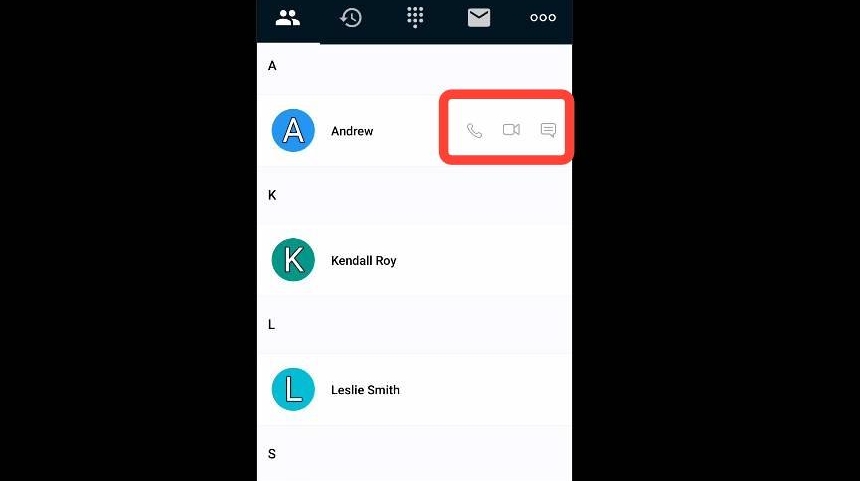
Each contact has buttons to:- Phone: start a voice call.
- Video: start a video call.
- Message: send a text message.
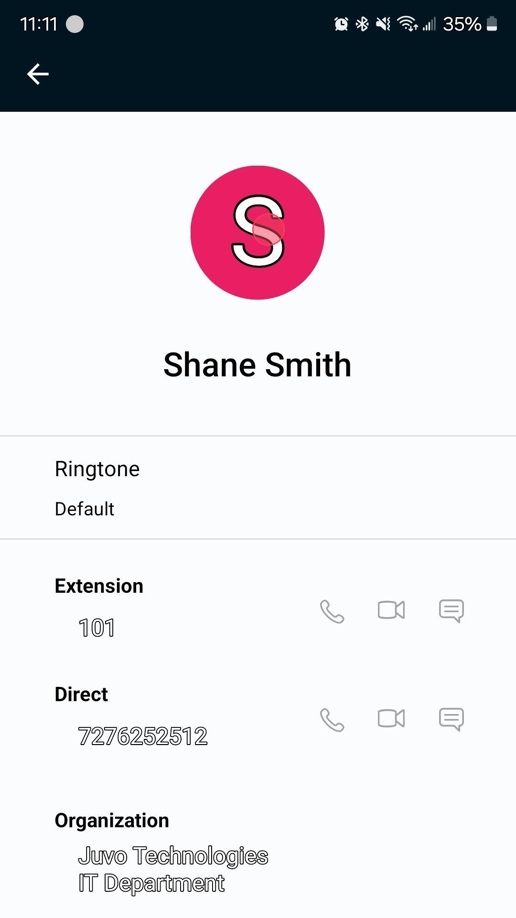
 Tap a contact to see its details, such as Ringtone, Extension Number, Direct Number, and Organization. The same Phone, Video, and Message buttons appear next to the contact.
Messaging
To send a message, tap the Message button next to a contact.
Managing a Call in VOXO Mobile
When a call connects, you see the active call screen.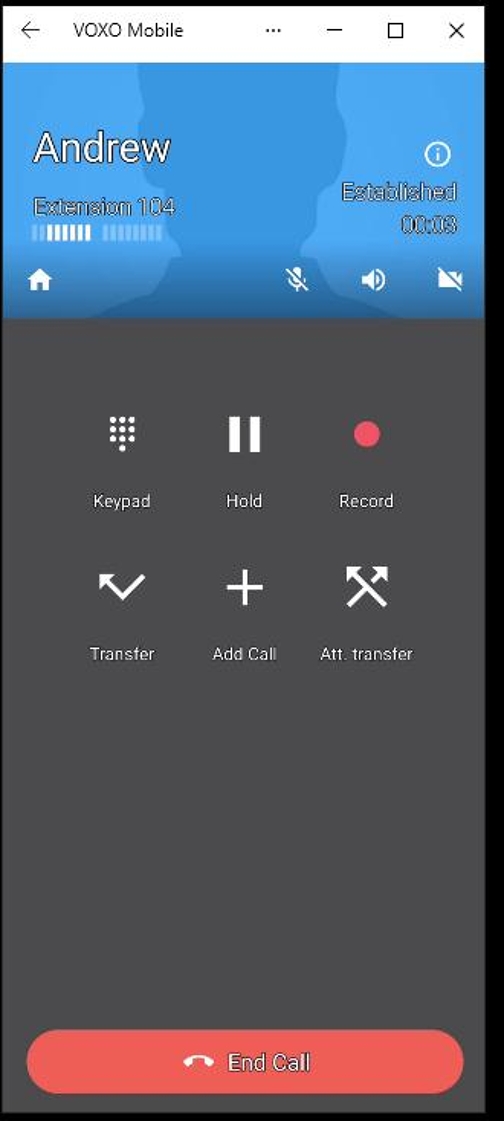 The top of the screen shows:
- Name: the caller’s name.
- Extension: the caller’s extension or phone number.
- Call Status: the state of the call (for example, Established).
- Call Duration: how long the call has lasted.
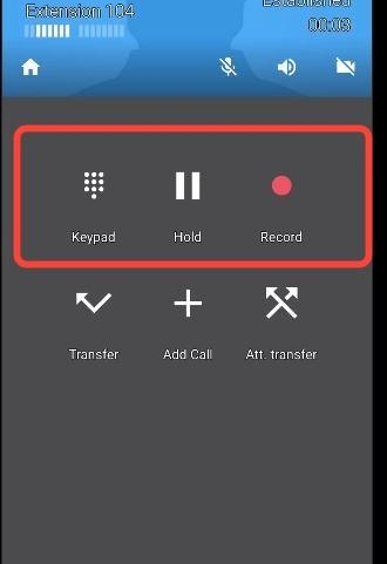
 To manage the call:
- Keypad: opens the keypad so you can enter numbers during the call.
- Hold: places the call on hold.
- Record: starts recording the call.
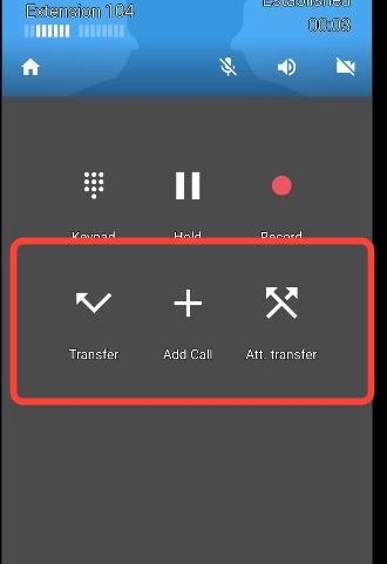
 To transfer the call or add someone:
- Transfer: transfers the call to another contact.
- Add Call: adds another call, creating a conference call.
- Attended Transfer (Att. transfer): lets you speak to the new contact before you transfer the call.
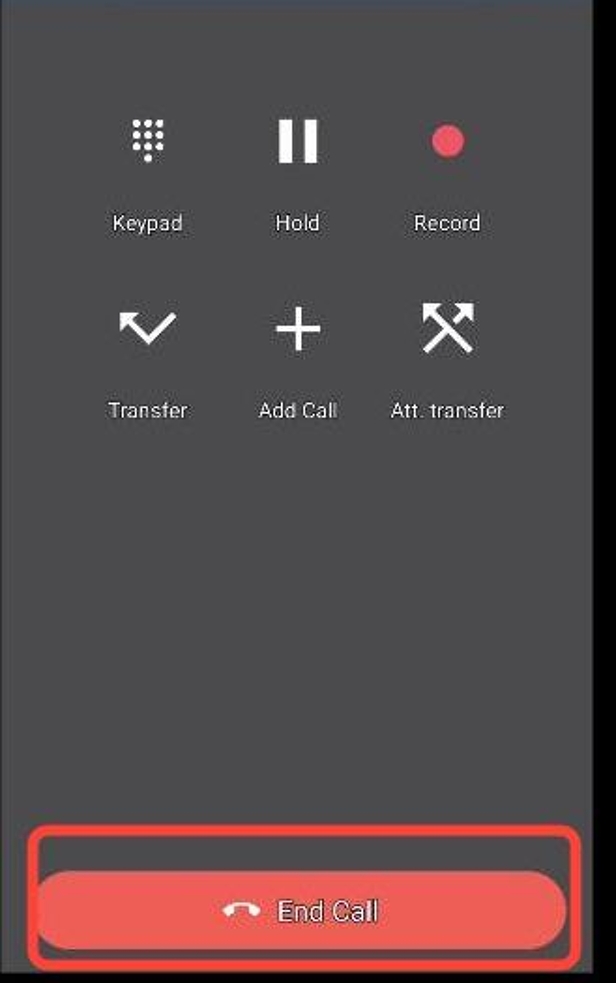
 To hang up, tap the red End Call button at the bottom of the screen.
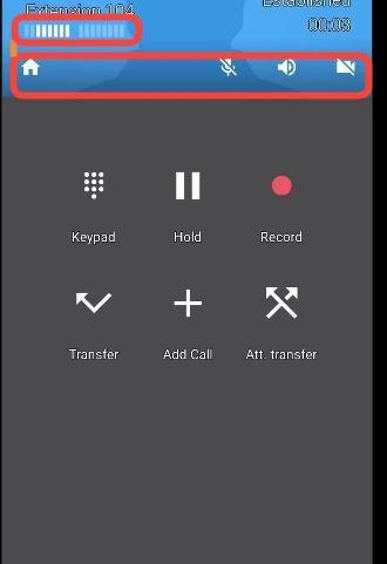
 Other call controls:
- Home: returns to the main app screen while the call stays active.
- Mute: mutes or unmutes your microphone.
- Speaker: turns the speakerphone on or off.
- Camera On/Off: turns the camera on or off during a video call. You can switch between the front and rear camera.
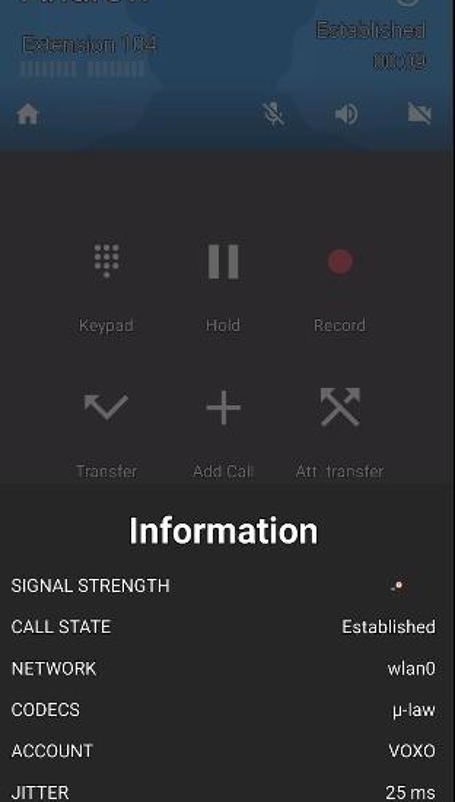
 To see details for the current call, tap the information (i) button at the top of the screen.