This guide provides step-by-step instructions on how to navigate and use the Billing Dashboard within the Omnia Admin Portal.
This document applies to the following user roles within Omnia: Partner Administrator
Account Administrator
Accessing the Billing Dashboard
Navigate to the Billing Dashboard :
Go to the Admin Portal and sign in.
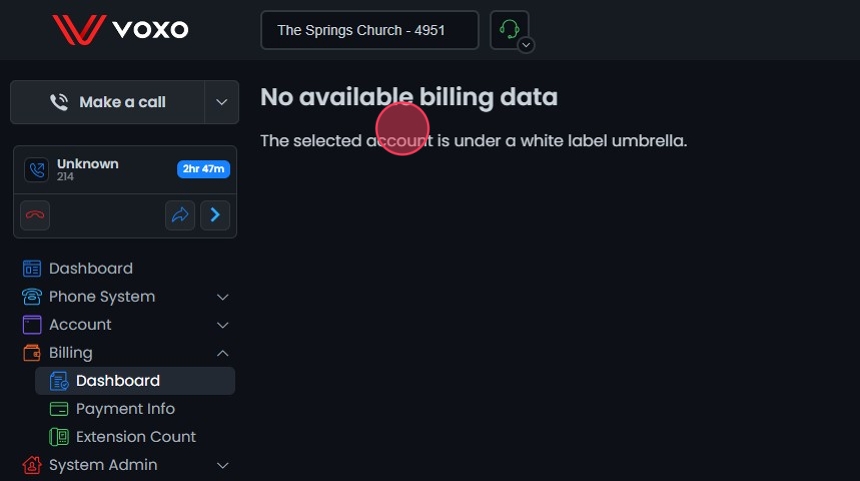
Click the Billing tab to expand it, then select Dashboard .
Billing Access Overview
Account Admins:
For accounts under a white label umbrella, Account Administrators can only access Extension Count for the accounts they have access to.
For accounts not under a white label umbrella, Account Administrators can view the Dashboard , Payment Info , and Extension Count for the accounts they have access to.
Billing Activity
Billing Activity Chart:
The Billing Activity chart provides a visual representation of various billing components over time.
Each bar represents the monthly count and cost of different services, such as Extensions , SIP Trunks , Faxes , Toll Free Minutes , International Minutes , and Residential Seats .
The green line shows the Cost Per Month trend over time.
Tooltip Details:
Hovering over any bar in the chart will display a tooltip with detailed information for that month, including:
Cost Per Month (Green)Extensions count (Blue)SIP Trunks count (Orange)Faxes count (Pink)Toll Free Minutes count (Lavender)International Minutes count (Purple)Residential Seats count (Red)
Balance:
The current balance is displayed in the top right corner of the chart.
Account Details (Partner Only)
Account Details Tab:
In the Dashboard section, navigate to the Account Details tab to view detailed billing information for each account.
Search Name: Use the search bar to filter accounts by name.Month Filter: Select the billing month from the dropdown menu.Export Button: Click to export the billing details for all accounts into a CSV file.
The table displays the following columns:
Account: The name of the account.Billing Code: The billing code associated with the account.Extensions: The number of extensions associated with the account.Faxes: The number of faxes associated with the account.SIP Trunks: The number of SIP trunks associated with the account.Phone Numbers: The number of phone numbers associated with the account.Interstate In: The count of interstate inbound calls.Interstate Out: The count of interstate outbound calls.Intrastate In: The count of intrastate inbound calls.Intrastate Out: The count of intrastate outbound calls.Toll-Free Mins: The number of toll-free minutes used.Interstate In Minutes: The number of minutes for interstate inbound calls.Interstate Out Minutes: The number of minutes for interstate outbound calls.Intrastate In Minutes: The number of minutes for intrastate inbound calls.Intrastate Out Minutes: The number of minutes for intrastate outbound calls.International Minutes: The number of international call minutes.
Each column header can be clicked to sort the accounts based on that particular column.
Viewing Invoices
Invoices :
The tab displays a list of invoices with the following details:
Date : The date the invoice was issued.Invoice # : The unique identifier for the invoice.Total : The total amount of the invoice.Total W/ Tax : The total amount of the invoice including tax.
Features in the Invoices Tab:
Sort Columns : Click the column headers to sort the invoices in ascending or descending order.Expand Invoice Details : Click the list button next to an invoice to view detailed information.Download Invoice : Click the Download Invoice button to download the invoice.Export : Click the Export button to download a list of all invoices into a CSV file.
Partner Inventory (Partner Only)
Partner Inventory Tab:
In the Dashboard section, navigate to the Partner Inventory tab to view detailed inventory information for all accounts under partner accounts.
Month Filter: Select the billing month from the dropdown menu.Export Button: Click to export the inventory details for all accounts into a CSV file.
The table displays the following columns:
Billing Code: The billing code associated with the account.Account Name: The name of the account.Extension Number: The number of the extension.Extension Name: The name assigned to the extension.Extension Caller ID: The caller ID associated with the extension.Phone MAC: The MAC address of the phone associated with the extension.Phone Name: The name assigned to the phone.Phone Model: The model of the phone.e911 Location: The e911 location assigned to the extension.
Each column header can be clicked to sort the accounts based on that particular column.