This guide provides step-by-step instructions on how to manage devices within the Omnia Admin Portal.
This guide provides step-by-step instructions on how to manage devices within the Omnia Admin Portal. It covers accessing, viewing, and deleting devices.
This document applies to the following user roles within Omnia:Account Administrator
Partner Administrator
Navigate to System Admin - Devices
Go to the Admin Portal and sign in.
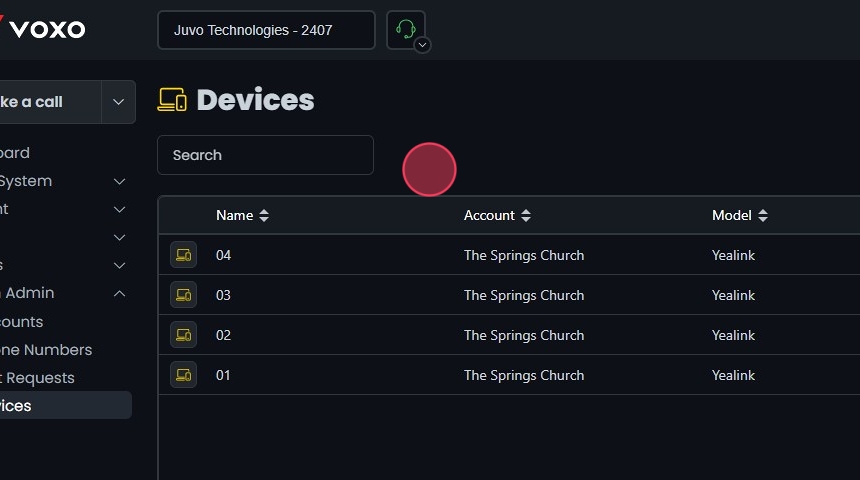
Click the System Admin tab to expand it, then select Devices.
The Devices page will display a list of devices along with their names, accounts, models, and MAC addresses.
Note: Partner Admins will see all devices for the accounts under their administration. Account Admins will only see the devices for the accounts assigned to them.
Search for a Specific Device:
Use the Search bar at the top of the page to find a specific device.
Click the sort icons next to the column headers to arrange items in ascending or descending order.
VOXO auto-provisions Yealink and Polycom phones — plug one in and it pulls its configuration automatically. Other SIP-capable phones can still register, but they won’t auto-provision and must be configured manually with SIP credentials.Point the phone at the SIP server hostname sip.voxo.co rather than an IP address. VOXO doesn’t publish a fixed IP for the gateway, so using the hostname ensures the phone always resolves to the current one.Contact support to get the SIP credentials for manual provisioning, or to confirm whether a specific phone model has been tested with VOXO before you buy it.
Was this page helpful?
Assistant
Responses are generated using AI and may contain mistakes.