

What you can see in this report depends on your user role.
Accessing Queue Summary
- Go to the Admin Portal and sign in.
-
Click Reports to expand it, then select Queues > Queue Summary.

Viewing Queue Summary Records
The report opens showing today’s data, one row per queue. The columns are:- Name (the queue)
- Inbound Complete, Abandoned, and Refused
- Blind Transfers, Attended Transfers, and Total Transfers
- Total Wait Time, Average Wait Time Per Call, Shortest Wait, and Longest Wait
- Percent Answered Under 30 Seconds
- Total Talk Time and Average Talk Time Per Call
- Exits with Key Press and Exits By Timeout
- Total Inbound and Unique Inbound
- Answer Rate Minus Abandons: The answer rate excluding abandoned calls.
- Average Abandon Time Per Call
- Complete Callbacks, Successful Callbacks, and Failed Callbacks
- Hold Time Under 0.5 Minutes and Hold Time Over 0.5 Minutes
- Total Outbound
 Click any column header to sort by it.

Filtering Queue Summary Records
-
To change the date range, click Yesterday, Last 10 Days, or Last 30 Days at the top of the page.

-
For more options, click Filter.

-
Pick a start and end date and time, or pick a preset: Last week, Last month, Last 3 months, Last 6 months, or Last year.

-
Choose a distribution: Hourly, Daily, Monthly, Agents, or None.

-
Optionally, enter a hold time in minutes to filter by.
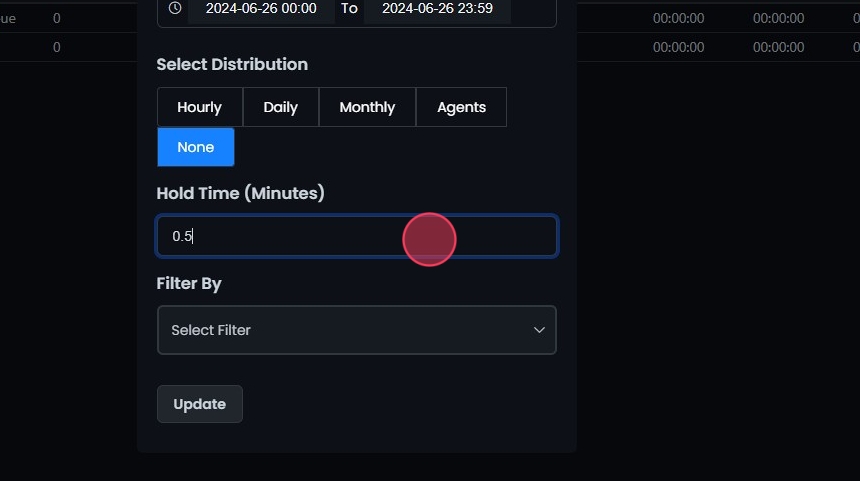
- Optionally, filter by Queues (select one or more queues) or Tag (enter a tag).
-
Click Update to apply your filters.


Exporting Records
Click Export at the top right of the records table to download the records shown.
Scheduling Queue Summary Reports
-
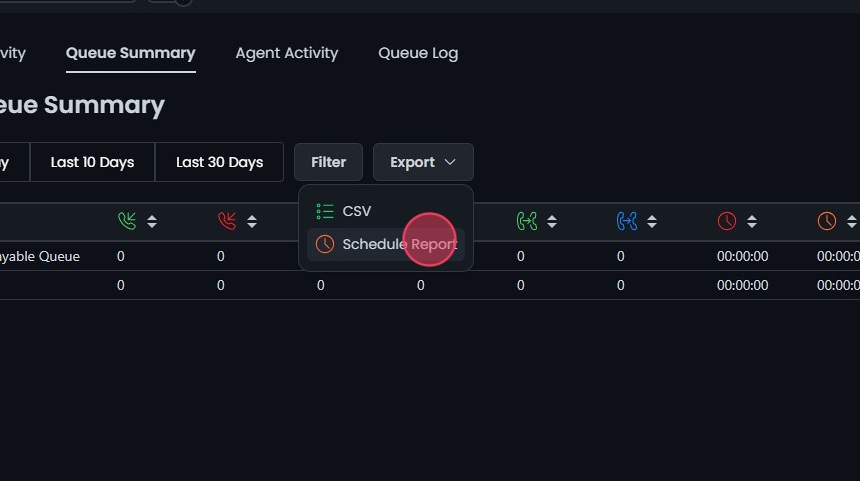
Click Export, then select Schedule Report.
- Enter a name for the report.
- Add recipient email addresses, separated by commas.
- Select how often to send it: Daily, Weekly, or Monthly.
-
Review the current filter settings, then click Schedule.
