

Accessing 10DLC Messaging
-
Go to the Admin Portal and sign in. Click the Account tab to expand it, then select 10DLC Messaging.

-
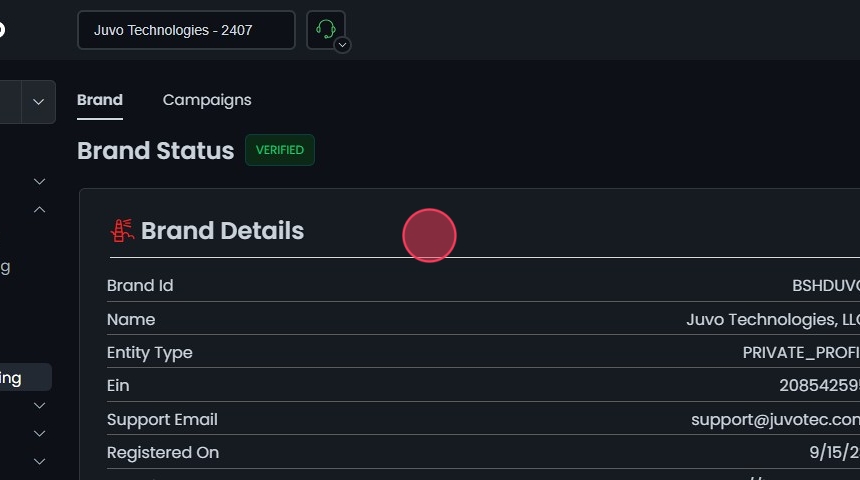
Click the Brand Status tab and check that your brand status is VERIFIED.

-
The Brand Details section shows the brand’s:
- Brand ID
- Name
- Entity Type
- EIN
- Support Email
- Registration Date
- Website
- Address
-
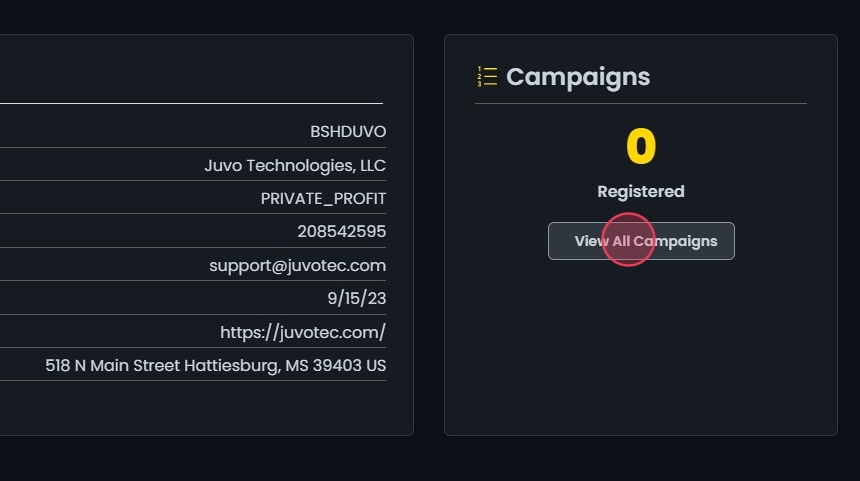
Under the Campaigns section, click View All Campaigns.
Campaign Overview
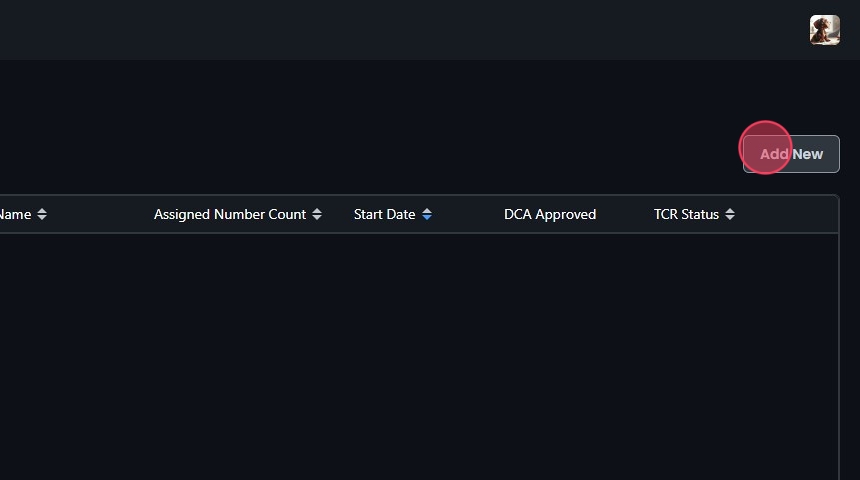
The Campaigns tab lists all your 10DLC messaging campaigns with these details:- Campaign ID: Unique identifier for the campaign.
- Brand ID and Brand Name: The brand the campaign belongs to.
- Assigned Number Count: How many phone numbers are assigned to the campaign.
- Start Date: When the campaign starts.
- DCA Approved Status: Whether the Direct Connect Aggregator (DCA) has approved the campaign.
- TCR Status: The campaign’s status with The Campaign Registry (TCR).
 Use the search bar to find a campaign, or click Export to download the list for analysis or reporting.

Create a Campaign
A campaign ordered on a pharmacy account is registered under the low volume use case, which covers account notifications, customer care, marketing, and delivery notifications.
-
In the Campaigns tab, click Add New.
-
Enter the campaign details:
- Description: What the campaign will be used for.
- Message Flow: How a consumer opts in to the campaign. Make the call-to-action clear and tell the consumer what kind of program they’re joining. If you use more than one opt-in method, list them all.

-
Enter Sample Message 1, for example, “This is a test. Reply STOP to opt out.” Click Add Sample Message to add more.

-
Fill in the campaign and content attributes:
- Opt-in Keywords: Keywords consumers text to opt in, such as “START,” “YES,” “SUBSCRIBE.”
- Opt-in Message: Include the brand name, confirmation that they’re enrolled, help information, and how to opt out. For example, “Juvo Technologies: Welcome! Msg & data rates may apply. Reply STOP to opt out. Reply HELP for help. Messaging frequency may vary.”
- Opt-out Keywords: Keywords consumers text to opt out, such as “STOP.”
- Opt-out Message: Acknowledge the opt-out and confirm that no more messages will be sent. For example, “Juvo Technologies: You have opted out of receiving messages from Juvo Technologies.”
- Help Keywords: Keywords consumers text to get help, such as “HELP.”
- Help Message: Give support contact information. For example, “Juvo Technologies: Help at support@. Msg & data rates may apply. Reply HELP for help. Reply STOP to opt out.”

Saving the 10DLC Messaging Campaign
Click Create. A confirmation message appears.
Approval timeframes
After you submit, brand and campaign reviews each have their own timeline. No SMS can send until both are approved.- Brand approval is often automated. If your business details match public records (EIN, address), the brand can verify within 24 hours, but a manual review can extend this to about 7 days.
- Campaign approval is run by The Campaign Registry and typically takes 3 to 7 business days under normal conditions. During high-volume periods it can stretch toward 2 weeks.
A brand you have just registered shows as pending on your account until The Campaign Registry confirms it. When the confirmation arrives, it becomes the account’s brand.
Common reasons campaigns get declined
Most rejections come from a small set of issues. Fixing these before you submit avoids resetting your place in the review queue:- No public web presence, or a missing privacy policy. Every business needs a web presence — a website or even a social media page — with a publicly visible privacy policy describing how you collect and use phone numbers and that message and data rates may apply. This is required regardless of your opt-in mechanism (website, verbal, or keyword/text-to-join). SMS terms and conditions are only required in addition to the privacy policy if opt-in happens on your website.
- Vague or unclear control/message flow. The Message Flow field should describe exactly how a consumer opts in (web form, in-store sign-up, paper consent, etc.) and what they will receive. Generic descriptions are a common decline reason.
- Mismatched business details. If the EIN, legal name, or address on the brand doesn’t match registry data, the application is flagged for manual review or denial.
Why outbound SMS isn’t sending
If messages won’t go out, work through these in order — most failures come from one of them:- Brand and campaign aren’t both approved. No SMS sends until your brand shows VERIFIED and your campaign is approved. Check both on the Brand Status and Campaigns tabs above.
- You’re sending from an extension that isn’t SMS-enabled. Not every extension can send SMS — confirm the one you’re sending from is enabled.
- Multiple locations each need their own SMS-enabled extension and login.
- A newly registered number is still provisioning. A number can take 1–2 business days after registration before its first message sends.
Campaign Management
Edit a campaign: Click the campaign or its Edit button. The Edit Campaign screen shows details such as Register Date, Share Date, Use Case, and Sharing Status. Make your changes and click Save. A confirmation message appears. View campaign numbers: Click the view numbers icon next to the campaign. The Phone Numbers in Campaign window lists the assigned numbers and the dates they were provisioned. Click the sort icons on the column headers to sort the list.
 Delete a campaign: Click the delete icon next to the campaign, then click Yes to confirm.
