

These guides cover the legacy VOXO Mobile app. If you’re installing the mobile app for the first time, use the VOXO Connect app instead — see Connect mobile app. Menus differ between the two apps.
Access Call History
Open the VOXO Mobile app and tap the call history (clock) icon at the top of the screen.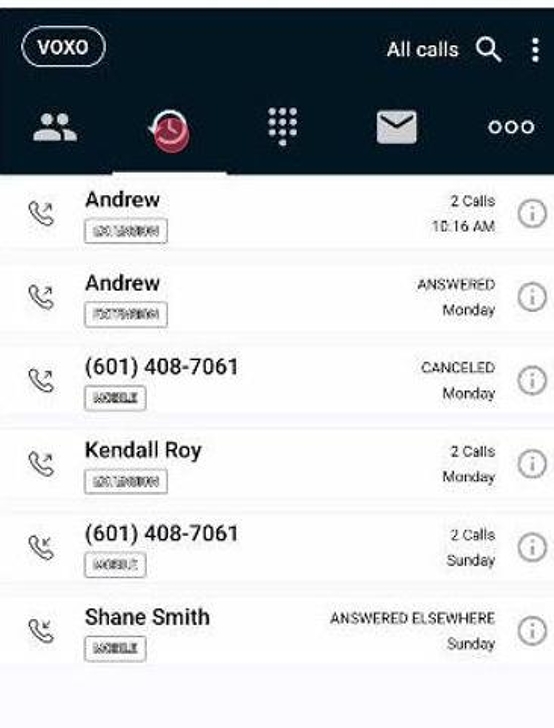
Reviewing Your Call Logs
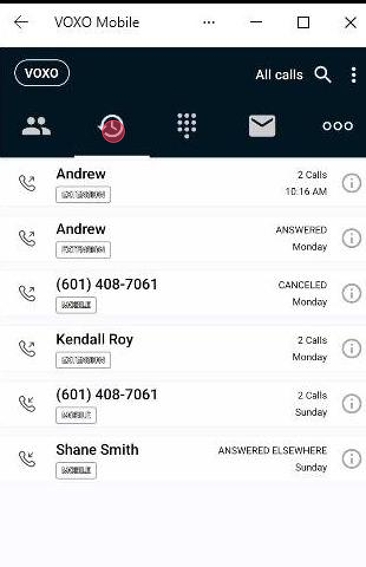
Each entry in your call history shows:- Contact/Number: the contact name or phone number for the call. Tap the entry to call it back.
- Call Status: whether the call was inbound, outbound, answered, missed, or canceled, plus the number of calls and the day and time.
Filtering Call History
Filter your history by:- All Calls: all incoming, outgoing, and missed calls.
- Missed Calls: only the calls you missed.
- Recorded Calls: only calls that were recorded.

Search Call Records
Tap Search and type details of the call you’re looking for, such as a date, time, or contact name.
Options Menu
Use the options menu to:- Clear Call History: remove all entries from your call history.
- Edit Mode: select multiple calls to delete or manage at once.
- Settings: open the app’s settings.

Understanding Call Icons
The phone icons on the left show the direction of each call:- Upward Arrow: outbound call.
- Downward Arrow: inbound call.

Additional Call Options
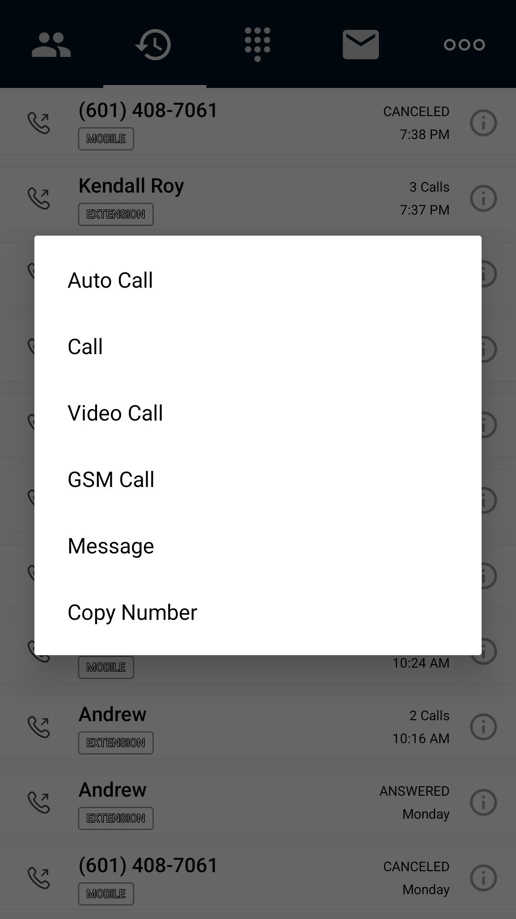
Press and hold a call record to see these options:- Auto Call: calls using your preferred calling method.
- Call: starts a standard voice call.
- Video Call: starts a video call with the contact.
- GSM Call: calls over the GSM network (your regular mobile carrier).
- Message: sends the contact a text message.
- Copy Number: copies the contact’s phone number to the clipboard.
Call Details
Tap the “i” button next to a call record to see the date, time, duration, and status (answered, missed, and so on) of each call. You can also delete call records from this screen.