This guide provides step-by-step instructions for accessing, adding, editing, duplicating, and deleting button layouts in the Omnia Admin Portal.
This guide provides step-by-step instructions for accessing, adding, editing, duplicating, and deleting button layouts in the Omnia Admin Portal. Button layouts configure programmable keys on VoIP phones for functions like speed dialing, parking calls, or monitoring extensions.
This document applies to the following user roles within Omnia:Account Administrator
Partner Administrator
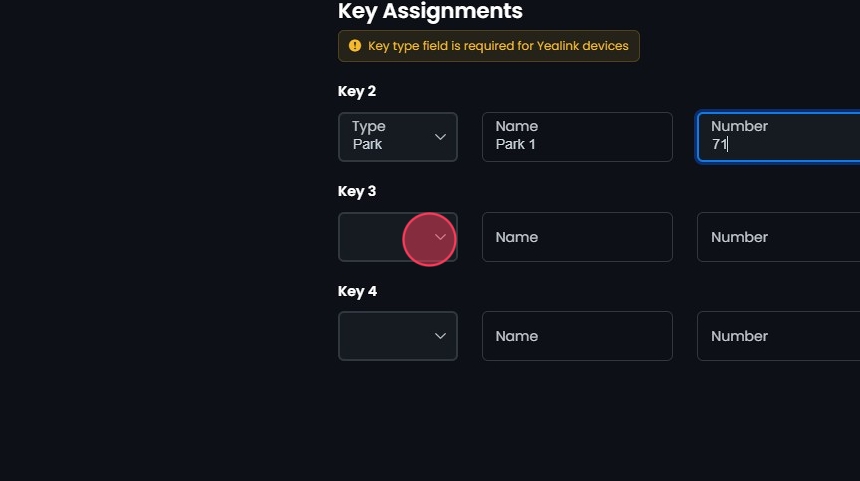
The End Key must be greater than the Start Key to create a valid range for button configuration.The Key type field is required for Yealink devices. Ensure this field is filled to avoid configuration errors.
Click on the dropdown menu to select the function for the key. Options include:
BLF (Busy Lamp Field): Monitors the status of another extension (busy or available).
Park: Allows you to park a call on a specific number.
Speed Dial: Provides quick dialing of a predefined number.
BLF (Grandstream): Specific to Grandstream devices, similar to BLF.
Speed Dial (Grandstream): Speed dial for Grandstream devices.
Park (Grandstream): Park call for Grandstream devices.
Name:
Enter a descriptive name for the key (e.g., “Park 1” or “Voicemail”).
Number:
Select or enter the number associated with the function. This could be an extension number, a park slot number, or a speed dial number.
Repeat for Additional Keys:
Continue assigning Types, Names, and Numbers for each key within the range specified.
Save Changes:
After configuring all necessary keys, review your entries to ensure accuracy.
Click Create then Yes to apply the changes.
Saved changes should auto-populate on the assigned phones. If the new buttons don’t appear, reboot the phone by unplugging it for 15 seconds and plugging it back in.To pick up a held call from a different phone, use Park slots rather than regular Hold. A call placed in a park slot can be retrieved from any phone that has a Park button assigned to that same slot — regular Hold keeps the call on the original phone only.
Search Bar: Quickly find specific items by typing the name or a keyword in the search field. The system will filter the list based on your search input, displaying the relevant results.
Sort: Click the sort icons next to column headers to arrange items in ascending or descending order.
There is no one-click bulk edit — button layouts are assigned per device, so each phone gets its layout individually. To roll a layout out to many phones, build it once (or Duplicate an existing layout as a starting point), then assign it to each device. Saved changes should auto-populate on the assigned phones; reboot only the phones that don’t pick up the change by unplugging them for about 15 seconds and plugging them back in.
Was this page helpful?
Assistant
Responses are generated using AI and may contain mistakes.