

Accessing Voicemails
Go to the Admin Portal and sign in. Click the Phone System tab to expand it, then select Voicemails.
Voicemail Overview
The list shows each mailbox’s:- Mailbox: The mailbox number.
- Name: The user associated with the mailbox.
- PIN: The PIN for accessing voicemail.
- Email: The email address voicemail notifications are sent to.

Creating a Voicemail
Click Add New.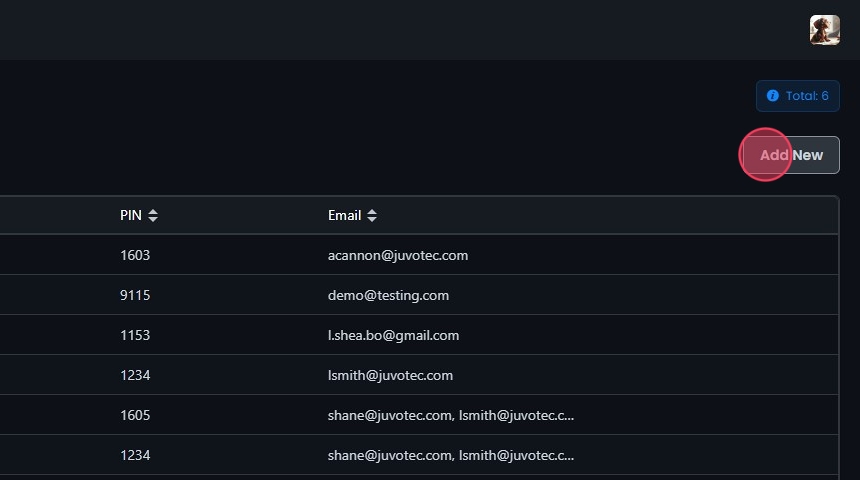
Email delivery and storage
- Enable Email Delivery: Delivers voicemails to an email address.
- Enable Storing Voicemails: Stores voicemails after successful email delivery so admins and users can manage them in Omnia. If unchecked, voicemails are not stored.

Mailbox details
- Full Name: The full name associated with the voicemail.
- Mailbox Number: A unique mailbox number.
- Email: The address for email delivery (if enabled). To send each voicemail email to more than one recipient, enter multiple addresses separated by commas.
- Notify Numbers: Optional. Enter one or more phone numbers (comma-separated) to receive an automated voice-call notification each time a new voicemail lands in this mailbox. This is a phone call, not a text message.
- PIN: The PIN for accessing the voicemail.

Virtual receptionist and operator
- Allow IVR Options: Turns on IVR options.
- Select IVR: The IVR to use.

If a caller presses 0 during the greeting and the greeting just repeats instead of transferring, the Operator destination on this voicemail box is blank — with no destination set, there is nowhere to route the caller, so the greeting replays. Set the Operator destination and save. Each voicemail box has its own Operator setting, so repeat this for every box that needs the press-0 option.
Save the voicemail
Click Create, then Yes to confirm.
Viewing and Editing Voicemails
Click the Voicemail, or click the Edit button next to it. From there you can change items such as the PIN and time zone, record, upload, or assign greetings, and listen to, download, and delete messages.
Configuring Voicemail Greetings
Click Greetings. There are four greeting types:- Name Greeting: Identifies your extension.
- Unavailable Greeting: Plays when you do not answer.
- Busy Greeting: Plays when you are on the phone.
- Out of Office Greeting: Overrides your unavailable and busy greetings.
 To use an existing file, click From media file, then pick a media file from the Select a greeting dropdown.
- Playback: Plays the media file.
- Download Greeting: Downloads it.
- Save as current: Makes the selected media file your greeting.
- Remove greeting: After saving, deletes the media file. Click Yes to confirm.
 To record or upload a new greeting, click Record or Upload.

- Press and Hold To Record: Click and hold to record a message.
- Upload File: Adds an existing audio file.
- Playback: Plays the media file.
- Cancel Changes: Reverts to the previous settings.
- Save as current: Saves the recorded or uploaded file as your greeting.
- Remove greeting: After saving, deletes the media file. Click Yes to confirm.
 When you’re done, click Save, then Yes to confirm.

Managing Voicemail Messages
The Messages tab lists every voicemail message with its date, time, caller name, number, and duration.
The Messages tab lists the voicemails currently stored in the mailbox. Voicemails age out of the system over time, so older messages may no longer appear here — and once a message has aged out, it can’t be retrieved. To keep a permanent copy of every voicemail, turn on Enable Email Delivery for the mailbox (see Email delivery and storage above) so each new message is sent to your inbox with the audio file attached, which you can save and replay any time.
 To delete a message, select it, click Delete, then click Yes to confirm.

Deleting Voicemails
Click the Delete button next to the Voicemail, then click Yes to confirm.